
The motherboard is one of the most important components of a computer, as all the internal components of a laptop or PC connect to it and operate through it. If your motherboard is not working well or has issues, you may experience many problems with your PC. The problems caused by a faulty motherboard include Blue Screen of Death (BSOD), Boot issues, Random Reboots, Drive-related issues, Random Freezing, etc. In some cases, a defective motherboard may also damage internal components. Troubleshooting whether the motherboard is faulty is challenging because you cannot isolate it, as all internal components connect to and work through the motherboard. Also, many symptoms of a defective motherboard can match those of other faulty components, making detection quite difficult.
Causes of Motherboard Failure
Below are the major factors that can cause a motherboard failure or make the motherboard faulty.
Short Circuit
One of the most common causes of motherboard failure is a short circuit. A short circuit can affect specific circuits or components, or cause the whole motherboard to fail. A short circuit can occur for the following reasons.
Accidents / Improper Installation – Accidents such as a motherboard standoff stuck between the motherboard back panel and the PC Case, or improper motherboard installation, where an unneeded standoff in the wrong spot can cause a short on the motherboard.
Liquid Spill – Even a small amount of liquid spillage on the motherboard can cause a short circuit. The liquid spill may also occur due to coolant leakage from the AIO Radiator or Tubes. A liquid spill can also cause corrosion, leading to a short circuit or damage to the motherboard’s components or its PCB.
Dust – Too much dust, coupled with moisture in a humid climate, can also cause a short circuit, damaging your motherboard. Regular cleaning of your PC and its components is essential. To remove dust, you can use an electric air blower or an electric air duster to blow it off the computer components. One of the most important things to keep in mind is that you should always clean your PC when the climate is dry, not during humid conditions, or you may cause damage to your internal components.
Check out: Tools for PC / Laptop Cleaning, Repair, and Maintenance
Faulty or Damaged Component
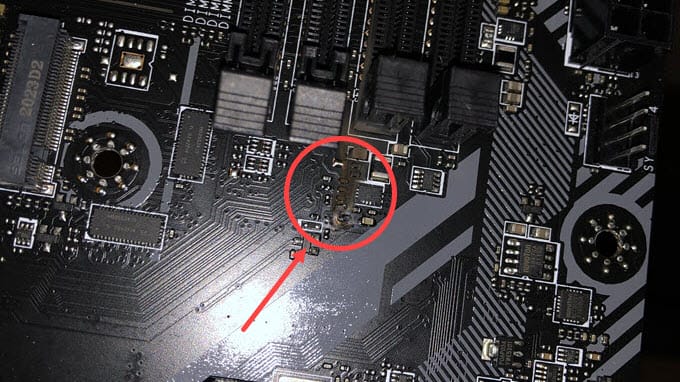
A faulty or damaged motherboard component is also a leading cause of motherboard failure. The damaged component can include an SMD resistor, SMD Capacitor, SMD Inductor, Electrolytic Capacitor, Integrated Circuit (IC), etc. The component can get damaged due to corrosion, power surge, or abnormal power delivery by the PSU, short circuit, manufacturing defect (quality control issue) or by accident where you accidentally knock off or cause damage to the component when installing or removing any internal component (graphics card, add-on card, SSD, HDD etc.) or routine cleaning the PC Case. Overheating can damage the motherboard’s components, especially the VRM (Voltage Regulator Module), which can get very hot. In the image below, you can check out some burned SMD components on a motherboard.
PCB Crack
A crack on the motherboard’s Printed Circuit Board (PCB) can cause motherboard failure by disrupting circuit connectivity. The crack can be superficial or deep within the PCB layer, depending on the extent of the damage. A PCB can crack due to physical damage or improper handling and installation of the motherboard in the PC Case. A PCB crack on the motherboard may also occur due to GPU sag when installing top-of-the-line graphics cards with bulky, heavy coolers. To minimize, reduce, or eliminate graphics card sag, you must use a GPU support bracket or graphics card holder.
Firmware or BIOS Issues
Firmware or BIOS-related issues can also cause problems with the motherboard’s functionality. The issues include compatibility with particular hardware, instability, and performance-related issues.
Major Symptoms of a Faulty Motherboard
Below are the most common symptoms that may indicate a failing or faulty motherboard. These symptoms are not limited to a faulty motherboard; they can also indicate issues with other components.
No POST or Stuck at POST
If your PC is not reaching the POST (Power-On Self-Test) screen, or is stuck at the POST screen and can’t get beyond it, most likely there’s an issue with your motherboard, given that your CPU, RAM, and Power Supply Unit (PSU) are working fine.
Check out:
- Ways to Check and Test PC Power Supply Unit (PSU)
- Failing PC Power Supply Signs, Symptoms and Causes
Frequent Boot Failure
If you are experiencing frequent boot failures and your CPU, RAM, Boot Drive (HDD or SSD), and PSU are working fine, this may indicate a motherboard issue.
Check: Faulty SSD Symptoms, Causes and Solutions
Onboard Ports Not Working
If some of the onboard ports or features on your motherboard are not working even after installing all the proper, up-to-date drivers, there may be an issue with the motherboard.
Audio not working – Audio not working, or some of the rear panel audio jacks are not working properly.
LAN Port not working – RJ45 LAN port not working or getting frequent disconnections.
USB Ports not working – USB devices are not recognized, or USB ports cause the PC to freeze when you connect any USB device.
SATA Ports Issue (Drives not getting detected) – Storage Drives (SSD, HDD) are not being detected.
Random Restarts or Shutdown
If you are experiencing random restarts or shutdowns, this may indicate a motherboard issue, given that you have no other software, OS, or hardware issues.
Frequent or Random BSOD
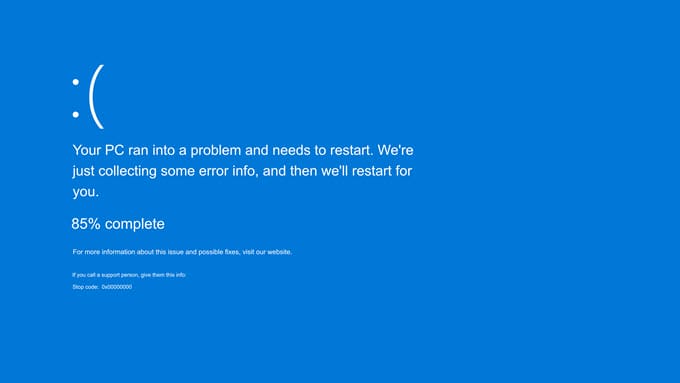
Getting frequent or random BSODs (Blue Screen of Death) can indicate an issue with a hardware component, including the motherboard.
Burning Smell
If you’re getting a burning smell from your PC Case, it indicates a burnt component, which could be of the motherboard.
Solutions and Fixes
Below are the solutions and fixes for a faulty motherboard.
Motherboard Repair – If some components of the motherboard, including SMD resistors, capacitors, inductors, electrolytic capacitors, ICs, etc., are damaged, then the motherboard can be easily repaired by replacing the faulty components. A PCB crack on the surface, not deep, can also be repaired by an expert technician. However, if the PCB crack is large and deep, or the PCB has significant burnout, it cannot be repaired. Moreover, an internal short on the PCB is usually beyond repair.
BIOS Update – Some issues, such as compatibility, settings, and instability, can be fixed by updating the motherboard’s BIOS to the latest version. Flashing the motherboard’s BIOS is relatively easy nowadays, and you can download the latest BIOS from the manufacturer’s website.
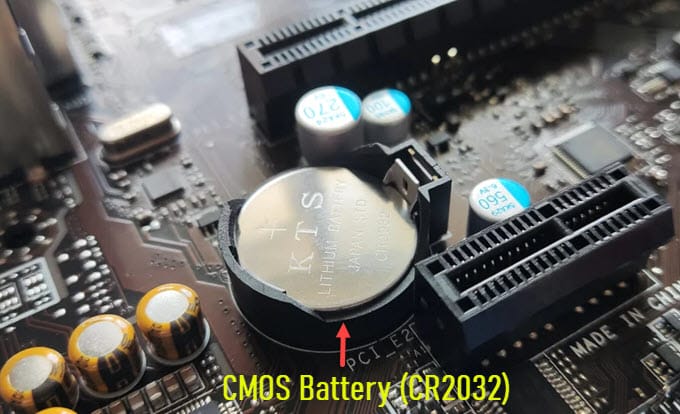
Replace CMOS Battery / Reset BIOS – You can also try replacing the motherboard’s CMOS battery to fix issues with BIOS settings, date, and time. The motherboard uses a CR2032 coin cell battery with a voltage of 3 Volts. If you have the latest BIOS and the CMOS battery is also fine, you can reset the BIOS by using the Clear CMOS button, shorting the clear CMOS jumper, or removing the CMOS battery and reinserting it after 2 or 3 minutes.
RMA (Return Merchandise Authorization) – If your motherboard is within the warranty period, you can RMA it and get a replacement.
Need more help?
If you need any further help with the motherboard issue, you can ask me in the comments below by clearly stating your problem and your computer’s hardware specifications.
(*This post may contain affiliate links, which means I may receive a small commission if you choose to purchase through the links I provide (at no extra cost to you). Thank you for supporting the work I put into this site!)
![Is My Hard Drive about to Fail [Top Symptoms of HDD Failure]](https://graphicscardhub.com/wp-content/uploads/2022/11/hard-drive-failure-symptoms-211x150.jpg "Is My Hard Drive about to Fail [Top Symptoms of HDD Failure]")
![Graphics Cards Slot Width Explained [Single, Dual, 2.2, 2.3, 2.5, 2.75]](https://graphicscardhub.com/wp-content/uploads/2019/09/graphics-card-slot-width-size-211x150.jpg "Graphics Cards Slot Width Explained [Single, Dual, 2.2, 2.3, 2.5, 2.75]")
