
Most users focus only on GPU temperature or GPU core temperature. Many don’t even know their graphics card reports another temperature called GPU Hotspot Temperature, and some simply don’t care. In reality, GPU Hotspot Temperature is one of the most ignored yet most important parameters of a graphics card.
A high GPU Hotspot Temperature can create almost the same problems as a high GPU core temperature, such as game crashes, freezing, thermal throttling, and even long-term damage to the graphics card. In many cases, your GPU temperature looks perfectly normal, but the hotspot temperature is already in the danger zone, and you never notice it.
In this article, we will explain what GPU Hotspot Temperature is, what the normal range is, what causes it to run high, and, most importantly, how to fix it. First, let’s understand the main difference between GPU Hotspot Temperature and GPU Temperature.
GPU Hotspot Temperature vs GPU Temperature
GPU Hotspot Temperature, or Junction Temperature, is the highest temperature recorded at any single point on the GPU. A GPU does not heat up evenly. Some areas of the GPU die, such as the regions with dense processing units or heavy processing, can become much hotter than the rest. To track this, a GPU has many temperature sensors (up to 100 or more) spread across its surface. Each sensor reports the temperature at its own location. This helps monitor the GPU and protect it from damage if a hotspot develops.
Tj Max (Thermal Junction Maximum) is the highest junction temperature a GPU is designed to operate at. When the GPU reaches this temperature, its thermal protection mechanisms may reduce clock speeds, voltage, or power consumption to prevent overheating and maintain safe operation.
On the other hand, GPU Temperature, also known as GPU Core Temperature or Edge Temperature, is the GPU’s overall (average) temperature calculated from these sensor readings. This is the temperature you normally see in monitoring software, and the one most people talk about. GPU Temperature is always lower than the GPU Hotspot Temperature.
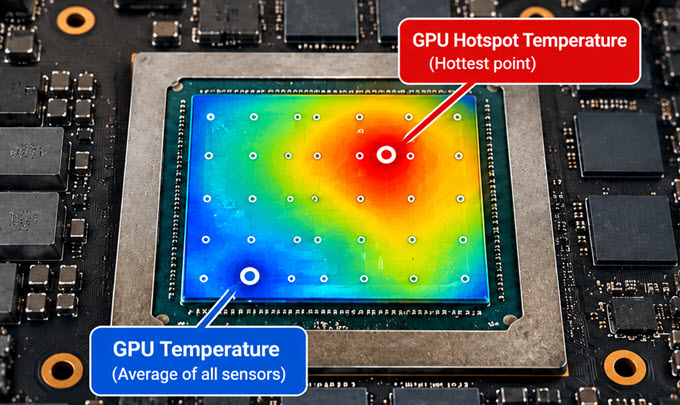
The gap between the GPU Hotspot Temperature and GPU Temperature (Core Temperature) is called Delta. It is an important parameter for checking whether the difference between GPU Hotspot Temperature and GPU Temperature is within the normal range.
Delta = GPU Hotspot Temperature – GPU Temperature
A small delta means the heat is spreading evenly from the GPU die to the heatsink. A large delta means heat is getting trapped at certain points on the GPU, which usually points towards a problem with the contact between the GPU and the Cooler or Heatsink.
Ideal, Normal and Unsafe GPU Hotspot Temperature
GPU Hotspot Temperature should always be under 100°C. Ideally, it should be between 75°C and 85°C. For high-end graphics cards that draw a lot of power, a GPU Hotspot Temperature of 90°C to 100°C under heavy load can still be considered normal.
Delta, or the gap between the GPU Hotspot Temperature and GPU Core Temperature, should be under 20°C. Ideally, it should be under 15°C for most graphics cards. A delta greater than 25°C to 30°C indicates uneven mounting pressure or improper contact between the GPU and the heatsink.
A GPU Hotspot Temperature above 100°C needs serious attention. Hotspot temperatures in the range of 105°C to 110°C or higher indicate overheating and can cause serious issues such as crashing, throttling, and instability. Over time, this can reduce the graphics card’s lifespan or even permanently damage the GPU.
| Parameter | Temperature Range | Status |
| GPU Hotspot Temperature | 75°C – 85°C | Ideal / Normal |
| GPU Hotspot Temperature | 90°C – 100°C | Normal for high-end graphics cards under heavy load |
| GPU Hotspot Temperature | Above 100°C | Needs serious attention |
| GPU Hotspot Temperature | 105°C – 110°C or higher | Overheating, unsafe |
| Delta | Under 15°C | Ideal |
| Delta | Under 20°C | Normal |
| Delta | 25°C – 30°C or more | Uneven mounting pressure or poor contact |
Note: These values are general guidelines. Always check the maximum operating temperature specified by the manufacturer for your particular graphics card model, as it can vary slightly between GPUs.
GPU Temperature, Hotspot Temperature and Delta: An Example
Let us understand GPU Temperature, GPU Hotspot Temperature, and Delta with a simple example. Assume a GPU named GP123 has ten temperature sensors (TS1 to TS10), and the temperatures reported by each sensor are as follows.
| TS1 | TS2 | TS3 | TS4 | TS5 | TS6 | TS7 | TS8 | TS9 | TS10 | |
| Temp (°C) | 62 | 70 | 65 | 81 | 75 | 63 | 77 | 71 | 66 | 67 |
From the table above, sensor TS4 reports the highest temperature of all sensors, at 81°C. So, here the GPU Hotspot Temperature is 81°C.
For GPU Temperature, we calculate the average temperature of all sensors: (TS1 + TS2 + TS3 + TS4 + TS5 + TS6 + TS7 + TS8 + TS9 + TS10) / 10.
GPU Temperature = (62 + 70 + 65 + 81 + 75 + 63 + 77 + 71 + 66 + 67) / 10 = 697 / 10 = 69.7°C, or approximately 70°C.
Delta = GPU Hotspot Temperature – GPU Temperature = 81 – 70 = 11°C
A delta of 11°C is well within the ideal range, so the GPU in this example has a healthy contact with its heatsink. In the worst case, the hotspot could reach 100°C or more while the GPU temperature stays around 70°C, giving a delta of 30°C or more.
Why is GPU Hotspot Temperature Important?
GPU Hotspot Temperature is very important for troubleshooting graphics card problems such as crashing, BSOD (Blue Screen of Death), and freezing due to overheating. Most people check only GPU temperature, see a normal value of 65°C to 75°C, and conclude that overheating isn’t the problem. But the GPU can still be overheating at a particular point on the die.
If your GPU temperature is normal but you have a very high GPU Hotspot Temperature, i.e., above 100°C, then you will most likely experience the following problems:
- Games crashing or closing suddenly
- PC crashing or restarting unexpectedly
- Blue Screen of Death (BSOD)
- Screen freezing or black screen
- Thermal throttling, which means lower clock speeds and a drop in FPS
Graphics cards are designed to reduce their clock speeds or shut down when any sensor reaches its thermal limit. So, even if the average temperature is fine, the card will throttle itself because of that one hot spot. Monitoring GPU Hotspot Temperature is therefore very important if you are facing such issues, so that you can find the root cause of the problem.
How to Find Out GPU Hotspot Temperature
You can check the GPU Hotspot Temperature using the latest version of hardware monitoring tools such as GPU-Z and HWMonitor. Both are free and easy to use. Just open the software, go to the Sensors tab (in GPU-Z), and look for the entry named GPU Hotspot or Hot Spot. In HWMonitor, look under your graphics card for the hotspot temperature reading.
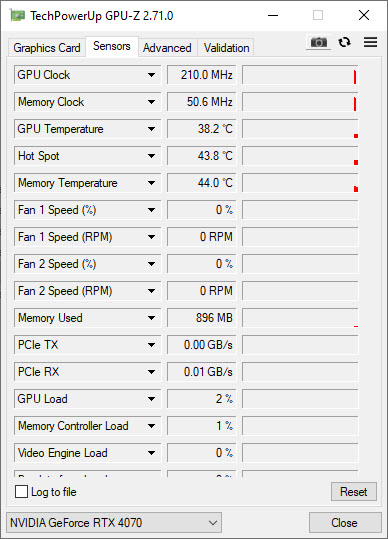
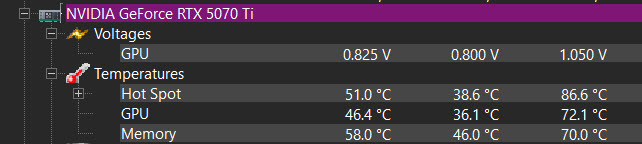
NVIDIA RTX 50-series (Blackwell): NVIDIA restricted public software access to the GPU hotspot temperature sensor on its RTX 50-series “Blackwell” graphics cards. However, the physical hotspot sensor remains on the GPU and continues to collect temperature data. The good news is that newer versions of monitoring utilities, including HWMonitor v1.65 and later and GPU-Z v2.71.0 and later, have restored hotspot temperature monitoring on RTX 50-series cards through alternative or direct access methods. So, make sure you are using the latest version of these tools. Below, you can see HWMonitor reporting the GPU Hotspot temperature of the GeForce RTX 5070 Ti graphics card.
Important Note: You can check GPU Hotspot Temperature for NVIDIA and AMD graphics cards only. Intel graphics cards do not provide GPU Hotspot Temperature. In Intel-based discrete graphics cards, you can only check the overall GPU temperature.
To get an accurate reading, run a demanding game or a GPU stress test (such as FurMark or a looping benchmark) for 15 to 20 minutes, then note the maximum GPU Temperature and GPU Hotspot Temperature reported by the software. Then calculate the Delta and compare it with the values given above.
High GPU Hotspot Temperature Causes
Below are the main causes of high GPU Hotspot Temperature. Most are related to the contact between the GPU and the heatsink, which is why Delta increases along with hotspot temperature.
Misaligned Cooler or Improper Fitting
The heatsink baseplate must sit perfectly flat on the GPU die with even pressure across the whole surface. If the contact between the heatsink and the GPU isn’t proper, heat cannot move out of certain areas of the die, and hotspot temperature climbs quickly. This often happens when the GPU cooler screws aren’t tightened properly or are tightened unevenly. Even a slight tilt can leave part of the die with thin or no contact, creating a large delta of 25°C to 30°C or more. It is also seen in graphics cards where the cooler has been removed and refitted without following the correct screw tightening sequence.
Dried Out Thermal Paste
Thermal paste fills the microscopic gaps between the GPU die and the heatsink and helps in transferring heat. Over time, the paste loses its oil content and becomes dry, hard, and crumbly. Dried-out paste cannot conduct heat properly and leaves tiny air gaps, which are poor conductors of heat. This usually happens in graphics cards that are 5 years or older, especially when they have been used extensively for gaming, mining, or rendering. Since the GPU die has uneven heat output, the hotspot suffers first, and the Delta begins to grow.
Check out: Best Thermal Paste for GPU and CPU
Thermal Paste Pump-Out Issue
The thermal paste pump-out effect is the gradual displacement of thermal compound from between the GPU and the heatsink. Every time your GPU heats up, the die and heatsink expand slightly; when it cools down, they contract. These repeated heating and cooling cycles slowly push the paste out from the center towards the edges. Over time, the center of the GPU die, which is generally the hottest area, is left with very little thermal paste. As a result, hotspot temperatures rise even if the GPU temperature doesn’t change much. Pump-out is more common with thin, low-viscosity pastes and in graphics cards that run at high temperatures.
Use of Thicker Thermal Pads During Thermal Pad Replacement
Graphics cards use thermal pads on the VRAM chips and VRM components to transfer heat to the heatsink. When replacing thermal pads, many users install pads thicker than the original ones. A thicker pad does not compress enough and keeps the heatsink slightly lifted from the GPU die. This results in improper contact between the GPU and the heatsink and a sharp rise in the GPU Hotspot Temperature. If your hotspot temperature rose after replacing the thermal pads, check the pad thickness first, then replace them with the correct thickness.
Faulty Temperature Sensor
Although rare, a faulty temperature sensor can report an incorrect hotspot temperature. Signs of a faulty sensor include a hotspot reading that is stuck at a fixed value, a reading that jumps abnormally, or a hotspot value that is extremely high (or even lower than the GPU temperature) while the card performs normally with no throttling or crashing. In that case, check the readings with more than one monitoring tool before opening your graphics card.
GPU Driver Bugs
A buggy GPU driver can sometimes cause incorrect temperature reporting or abnormal fan behavior. If your GPU Hotspot Temperature increases suddenly after a GPU driver update, the driver may be the cause. In that case, roll back to the previous stable driver version (a clean installation using DDU is recommended) and check the temperatures again. If the hotspot temperature returns to normal, you know the new driver was the culprit.
Manufacturing Defect
In some graphics cards, the contact surface of the heatsink baseplate is not perfectly flat. It can be slightly concave, leaving a gap at the center of the GPU die where the hotspot develops. This is a manufacturing defect, and it is often seen in a particular batch or model, so you will find other users complaining about the same issue. If the card is under warranty, it is best to get it replaced or repaired. Some experienced users sand down (lap) the baseplate surface to make it flat and even, but this will void your warranty and should be done only if you know exactly what you are doing.
Poor Airflow Inside the PC Case
If both your GPU temperature and GPU Hotspot Temperature are high, and the Delta is normal, the problem isn’t thermal contact. It is with the cooling. Poor airflow, too few case fans, a cluttered cable arrangement, or a high room temperature can raise the whole GPU temperature, and the hotspot goes up with it.
Dust Accumulation and Fan Problems
Dust clogs the heatsink fins and fan blades, reducing airflow through the cooler. Worn-out fans that spin slowly or have stopped spinning altogether have the same effect. The heatsink cannot dissipate the heat fast enough, and the temperatures rise.
Overclocking, High Power Limit and Heavy Workloads
Overclocking, increasing the power limit, or raising the voltage makes the GPU generate more heat in a small area. The hotspot reacts first to this extra heat. Long gaming sessions, rendering, mining, or AI workloads can also keep the GPU at full load for hours and push the hotspot temperature beyond the safe limit if cooling isn’t adequate.
How to Reduce GPU Hotspot Temperature
Below are some practical ways to fix or reduce high GPU Hotspot Temperature. Start with the simple fixes first and move to the advanced ones if the problem continues.
Replace and Reapply Thermal Paste
Replacing the old thermal paste is the most effective fix for high hotspot temperatures, especially on graphics cards that are 3 to 5 years old or older. Carefully remove the cooler, clean the old paste from the GPU die and heatsink baseplate with isopropyl alcohol (90% or higher) and a lint-free cloth, then apply a fresh layer of good-quality, non-conductive thermal paste. Use a high-viscosity paste, as it is less prone to pump-out. Avoid applying too much paste, because excess paste can create poor contact and a mess around the GPU that is a nightmare to clean.
Note: Opening your graphics card may void the warranty. If the card is still under warranty, contact the manufacturer or the seller first.
Check the GPU Heatsink Alignment, Fitment, and Screws Torque
If the paste is relatively fresh and you still have a high delta, check the cooler fitment. Remove the heatsink and inspect the paste imprint on the GPU die. The paste should have spread evenly across the whole die. If one side is thin or clean while the other side has a thick layer, the mounting pressure is uneven. Refit the cooler and tighten the screws gradually in a cross (diagonal) pattern, a little at a time, until they are snug. Do not over-tighten them, as it can damage the GPU or the PCB. Also check whether any screw, washer, or spring is missing or damaged.
Note: Remember to reapply the thermal paste every time you remove the heatsink for re-inspection. Never reuse the old paste.
Use Correct Thermal Pad Thickness
If you replaced the thermal pads, make sure you used the correct thickness for your graphics card model. Measure the original pads’ thickness before replacing them, and use the same thickness. If the hotspot is still high after replacing the pads, switch to slightly thinner pads and check the paste imprint on the die again.
Improve Cooling and Airflow
If you have both a high GPU temperature and a high GPU Hotspot Temperature, you need to improve airflow in your PC case. Here are some things you can do:
- Add or upgrade case fans to create a proper intake and exhaust arrangement.
- Clean dust from the GPU heatsink, fans, case filters, and radiators using compressed air.
- Manage the cables so they don’t block airflow.
- Create a custom GPU fan curve using MSI Afterburner so that the fans spin faster at higher temperatures. Use the hotspot temperature, not just the GPU temperature, as the reference.
- Make sure the GPU fans work properly, and replace any faulty ones.
- Keep the PC in a well-ventilated area, away from walls and heat sources.
Undervolt or Reduce the Power Limit
Undervolting is one of the best ways to reduce the GPU temperature without losing much performance. By lowering the voltage for the same clock speed, the GPU produces less heat and the hotspot temperature drops. You can also reduce the power limit by 5% to 10% using MSI Afterburner. If you have overclocked your card, revert to stock settings and check whether the hotspot temperature returns to normal.
Use Phase Change Thermal Pad for GPU
If you don’t want to re-paste every few years, a phase-change thermal pad such as the Honeywell PTM7950 is a great alternative to thermal paste. A phase-change pad is solid at room temperature and easy to apply. When the GPU heats up and crosses a particular temperature, the pad softens, flows, and fills every tiny gap between the GPU die and the heatsink. Here are its main advantages over thermal paste:
- Longer lifespan: it lasts for years without needing replacement.
- No dry-out issue: unlike thermal paste, it does not dry out.
- No pump-out issue: it stays in place even after thousands of heating and cooling cycles.
- Excellent performance: it offers very good thermal conductivity and often significantly reduces hotspot temperatures.
- No air pocket issue: it conforms to the surface and fills micro-gaps.
- Adapts with temperature: it changes its state with the temperature and maintains proper contact.
Phase change pads cost more than thermal paste and are a bit harder to apply, but they are a great long-term solution, especially for high-end graphics cards that run hot. You can read more about it in our detailed article on the Best Phase Change Material (PCM) for CPU, GPU and Laptops.
Update or Roll Back the GPU Driver
If hotspot temperatures rose after a driver update, roll back to the previous version. Otherwise, make sure that you are using the latest stable driver and the latest version of GPU-Z or HWMonitor, as an outdated monitoring tool may report incorrect values.
Contact the Manufacturer for a Defective Card
If your graphics card is new or under warranty and has a high hotspot temperature and a large delta even at stock settings, it is most likely a manufacturing defect, such as an uneven heatsink baseplate. Do not open the card. Contact the seller or the manufacturer and ask for a replacement or repair.
Final Words
If you are facing crashes and stability issues with your graphics card, one of the most important things to check is GPU Hotspot Temperature. It is often neglected, but it can help you diagnose the root cause of the problem. Keep your GPU Hotspot Temperature under 100°C, and the Delta under 20°C, for a longer lifespan and better health of your graphics card. If you have any questions, please ask in the comments below.
(*This post may contain affiliate links, which means I may receive a small commission if you choose to purchase through the links I provide (at no extra cost to you). Thank you for supporting the work I put into this site!)

![Should I upgrade my PSU after upgrading the GPU? [Know here]](https://graphicscardhub.com/wp-content/uploads/2022/10/psu-upgrade-after-upgrading-gpu-211x150.jpg "Should I upgrade my PSU after upgrading the GPU? [Know here]")
