
RAM, or Random Access Memory, is one of the most critical components of a PC and a Laptop. If any issue or fault arises with RAM, or if the memory goes bad, it can cause a lot of problems with your PC or Laptop, affect your work and productivity, and even lead to loss or corruption of your valuable data. Troubleshooting a bad RAM can be easy or hard, depending on the symptoms and issues encountered. This is because some symptoms can be quite common and may indicate a problem with another hardware component, a device driver, or software. To help you with this issue, I will list common RAM symptoms and the top ways to test whether your RAM is faulty.
Faulty RAM Signs and Symptoms
Below are some of the most common signs or symptoms of a faulty RAM or system memory.
Computer not Booting
If your computer is not booting at all and you cannot reach the POST (Power-On Self-Test) screen, it may indicate a RAM issue. You may encounter beep codes (if supported) when the computer fails to boot. The beep codes differ among BIOS manufacturers for memory failure. Below are beep codes for memory failures for different BIOS manufacturers. Most modern motherboard manufacturers use either AMI BIOS or a customized version of it.
AMI BIOS
| Beep Code | Error Description |
| 1 short beep | DRAM (Dynamic Random-Access Memory) refresh failure |
| 2 short beeps | Parity circuit failure |
| 3 short beeps | Base 64 K RAM failure |
Award BIOS
| Beep Code | Error Description |
| Beeps repeating endlessly | RAM problem |
Dell BIOS
| Beep Code | Error Description |
| 2 beeps | Memory / RAM not detected |
| 4 beeps | Memory / RAM failure |
Insyde BIOS
| Beep Code | Error Description |
| 4 short, 1 long, 1 short beep | Circuit for refreshing RAM not working |
| 3 short, 1 long, 2 short beeps | CMOS RAM test failure |
| 2 short, 1 long, 2 short, 1 long beep | No RAM installed or RAM not recognized |
Phoenix BIOS
| Beep Code | Error Description |
| 1-1-1-1 | Unconfirmed beep code. Reseat RAM chips or replace them as a possible solution. |
*The above-mentioned Beep codes may differ depending on the motherboard model.
Debug LED Lights
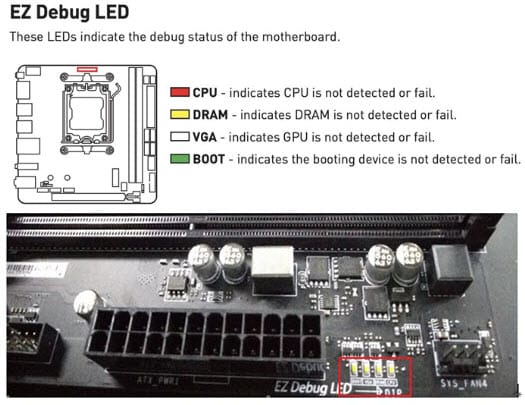
Some modern motherboards use debug LEDs instead of beep codes to indicate component faults. For example, the latest MSI motherboards have EZ Debug LEDs that can indicate faults in the CPU, DRAM, VGA, and BOOT during the boot process. When errors in related hardware occur during the system’s boot process, the corresponding LED indicator will remain on continuously, allowing you to quickly determine the point of failure. Below are the Debug LED indicators for MSI motherboards.
Frequent OS Boot Failure
If your computer is experiencing frequent OS boot failures, it may be a sign of faulty RAM. Boot failure can also occur due to a faulty SSD or HDD, or corrupted OS files, so you have to check this yourself to see whether the issue is the RAM or the Boot Drive (SSD or HDD).
BSOD (Blue Screen of Death)
A faulty memory can cause a Blue Screen of Death (BSOD). While various factors, both software and hardware, can cause a BSOD, a faulty RAM is one of them. When a BSOD occurs, minidump files are created in the WINDOWS\minidump folder of your boot drive. The minidump files contain critical information regarding the crash, but they cannot be viewed with a simple editor. You need specialized software or a utility to read the information in minidump files. BlueScreenView is a free software or freeware utility that scans all your minidump files created during ‘blue Screen of death’ crashes, and displays the information about all crashes in one table. You can download BlueScreenView from the link below.
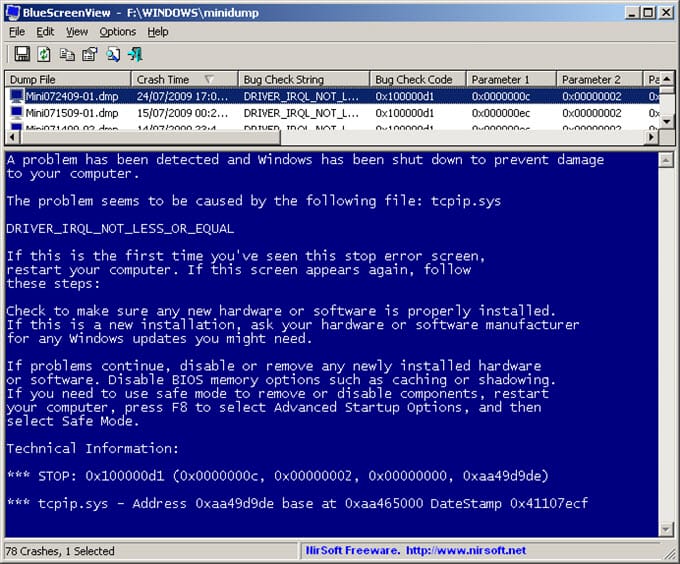
Note: Another good tool to analyze crash dump files is WhoCrashed by Resplendence. It automatically analyzes dump files and generates a report indicating the driver or module that caused the crash.
Random Restarts
In some cases, a faulty RAM may cause your computer to restart randomly without any BSOD.
Software Crashes
You can experience unexpected software crashes if your memory is faulty. Software crashes can occur for other reasons, but if they happen frequently across multiple software applications, it may indicate issues with RAM.
File Copying Errors (CRC Errors)
You may encounter file-copying errors (CRC errors) when copying or transferring large files between the same or different storage drives. When you encounter a CRC error, the data of the copied or transferred files becomes corrupted. The CRC error can also occur due to a faulty SSD or Hard Drive, but if your storage drives are in good health, without any bad sectors, it may indicate failing memory.
Major Causes of RAM Failure
Below are the main causes of RAM failure or faulty RAM in PC and Laptops.
Overheating
Overheating is one of the main causes of RAM failure, or can make the memory faulty. Overheating can be caused by memory overclocking, poor PC Case airflow, or a high ambient temperature. Most RAM does not come with a heatsink installed, but you can buy aftermarket RAM heatsinks or memory coolers to cool the RAM.
Check out: Best RAM Coolers and Heatsinks
Overclocking
Overclocking can also cause RAM corruption or memory failure. Memory overclocking using Intel XMP or AMD EXPO profiles is generally safe, but if you manually overclock the RAM and increase the voltages and memory timings for stability, it may cause overheating and memory failure if something goes wrong. So, it is better to stick to automatic overclocking via XMP or EXPO profiles if you want more performance from your RAM.
Physical Damage
Physical damage to the RAM module is another cause of RAM failure. Physical damage to the memory module can result from mishandling, static electricity, improper installation, or accidents. The physical damage to the memory module includes ripped contacts, PCB damage, ripped pads (on DRAM Chips), or damage to SMD components (resistors, capacitors, ICs, etc.).
Manufacturing Defects
Although rare, manufacturing defects in a memory can occur and cause memory issues or lead to complete failure. For manufacturing defects, you can RMA the memory if it is under warranty.
Voltage or Power Related Issues
Sometimes, improper RAM voltages set by the motherboard can also result in memory corruption, instability, or failure. This issue generally occurs with XMP/EXPO overclocking profiles. The issue can only be fixed by updating to the latest stable BIOS from the motherboard manufacturer or by turning off the XMP/EXPO profile.
Bit-rot
Bit-rot is the degradation of the RAM chips due to aging, faulty controllers, or external interference. Bit-rot may cause memory corruption and other issues if the impact is severe or non-recoverable.
How to Test or Check RAM
You can test your RAM for faults and errors using the following tools and utilities.
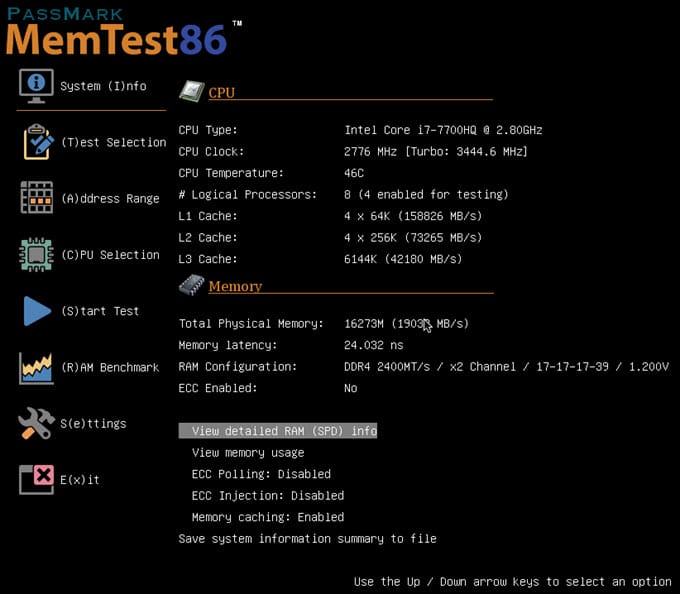
MemTest86 – MemTest86 is probably the best RAM diagnostic and testing software for finding RAM faults. It is a free, standalone memory-testing software that boots from a USB flash drive to test RAM for faults and errors. This RAM testing tool supports all types of RAM (including DDR5) and includes 14 RAM testing algorithms, including row-hammer fault detection. The software features ECC error detection & injection, Faulty DIMM/chip location, and more. It has an easy-to-use graphical interface with mouse input and has multi-language support (Chinese, German, Russian, Spanish & more).
Windows Memory Diagnostic Tool – An in-built memory diagnostic tool in Microsoft Windows 10/11.
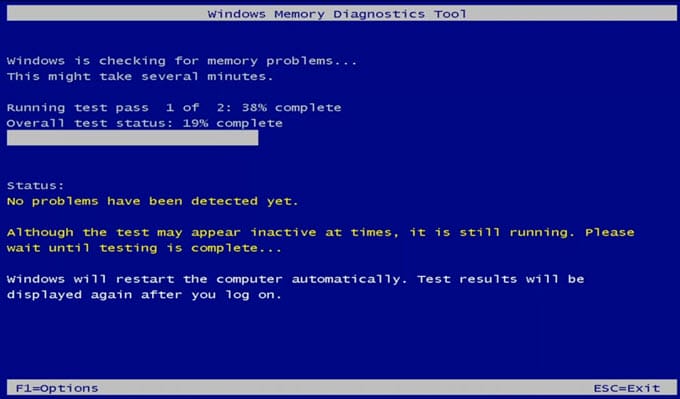
Windows Memory Diagnostic Tool / App can be launched in the following ways:
- In the Start menu’s search box, enter Windows Memory Diagnostic, and the app will appear as the first result.
- On your keyboard, select the Windows logo key + R to open the Run application. Enter mdsched in the Run Box to open the Windows Memory Diagnostic app.
- In the Settings menu, enter memory in the search box in the left panel. Select Diagnose your computer’s memory problems to access the Windows Memory Diagnostic app.
Note: Windows Memory Diagnostic Tool is not as reliable as MemTest86; you can still use it to check for basic RAM errors if you are suspicious about your RAM’s reliability.
Other RAM Issues
Here are some other factors that can cause problems with the RAM.
RAM Compatibility
RAM incompatibility can also lead to memory-related issues, including instability, BSODs, and application crashes. RAM incompatibility can occur due to two different RAM brands or speeds in one computer, motherboard incompatibility with certain memory brands, or BIOS issues.
Check out: How to Find RAM Compatibility for your Computer?
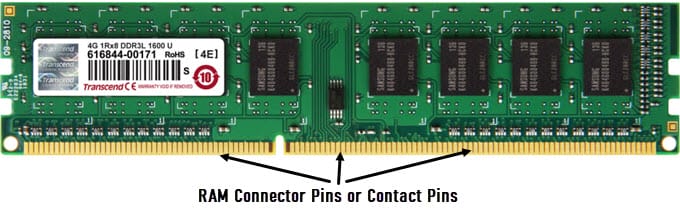
RAM Connector Pins Dirty, Broken, or Corroded
Dirty, broken, or corroded connector pins or contacts on the RAM can lead to serious memory issues, including instability, data corruption, and BSODs. If the RAM pins are dirty and corroded, you can clean them with 99.9% IPA (Isopropyl Alcohol) or an electrical contact cleaner spray (WD-40 Contact Cleaner) using a cotton swab. If one or more pins are broken, you can have them repaired by a good computer repair technician.
Faulty RAM Slot (DIMM Slot)
Sometimes the issue is not with the RAM but with the DIMM memory slot on the motherboard. A DIMM slot can get dirty or faulty, and the RAM can cause issues thereafter. A dirty or dusty DIMM slot can be cleaned with a compressed-air duster and a contact cleaner spray. So, if you have multiple DIMM slots, you can install the RAM in another slot and check whether you are still facing memory-related issues.
Installation Issues
In some cases, installation issues can cause memory problems when the RAM is not seated properly, or a sudden jerk or shock to the PC Case can slightly unsettle the RAM position, leading to boot and other issues. Here, you can reseat the RAM in the DIMM slot to fix the issues.
RAM Settings
Incorrect RAM settings, including voltage, timings, and other settings, can lead to memory issues (instability, crashes, etc.). So, make sure that your memory setting in the BIOS is set to Auto, not manual.
How to Fix Faulty RAM
Repair – RAM can be repaired by an expert computer repair technician. The repair generally involves replacing the faulty components, including SMD resistors, capacitors, ICs, and the DRAM chip.
RMA (Replacement) – If your RAM is under warranty, you can RMA it for a replacement.
Need more help?
If you need more help with RAM or memory-related issues, do let me know in the comments below.
(*This post may contain affiliate links, which means I may receive a small commission if you choose to purchase through the links I provide (at no extra cost to you). Thank you for supporting the work I put into this site!)
![Tips to Prolong Graphics Card Lifespan [GPU Maintenance Advice]](https://graphicscardhub.com/wp-content/uploads/2025/01/increase-graphics-card-lifespan-211x150.jpg "Tips to Prolong Graphics Card Lifespan [GPU Maintenance Advice]")
![Is My Hard Drive about to Fail [Top Symptoms of HDD Failure]](https://graphicscardhub.com/wp-content/uploads/2022/11/hard-drive-failure-symptoms-211x150.jpg "Is My Hard Drive about to Fail [Top Symptoms of HDD Failure]")
