
SSDs play an important role in making a computer faster and more responsive, especially for resource-intensive operating systems like Windows 10 and Windows 11. Running Windows 10 or Windows 11 on an HDD can be laggy and slow compared to running it on an SSD. Even at idle, disk usage of 100% or higher is pretty common with HDDs on Windows 10 or 11 due to the large number of background services/processes and frequent updates, but it is uncommon on SSDs because they are much faster than hard drives.
Even an average SATA SSD is almost five times faster than a mechanical hard drive (HDD) in Read/Write operations. 100% disk usage slows down your system, can cause the computer to freeze, and makes operations laggy. Also, constant 100% SSD usage can significantly shorten your SSD lifespan by eating up its write cycles. So, if your SSD usage is very high or at 100 percent with nothing running or without doing anything major, then it is not normal, and you have to address the issues to bring the disk usage back to a normal level. Below are the main causes (both software and hardware) of the ‘SSD 100% Usage’ problem, along with relevant solutions or fixes. The following causes and fixes apply to both SATA and NVMe SSDs.
How to Check SSD Utilization in Windows 10 / Windows 11
Open Task Manager -> Performance -> Disk and check the usage percentage of your SSD. For a more detailed breakdown of which process is hammering the drive, open Resource Monitor (you can launch it directly from the Performance tab) and check the Disk tab, which lists every process along with its read and write activity. If in the Resource Monitor you see 100% Highest Active Time, there are serious issues with the SSD, or something is keeping it super busy. The highest active time is the percentage of time spent performing IO (i.e., the time spent processing at the IO level).
SSD 100% Usage with Nothing Running [Causes and Solutions]
Below are the top causes and solutions of “SSD 100% Usage” in Windows 10/11 when you are not doing anything or running a light load.
Background Processes or Services
One of the most common reasons for SSD usage staying at 100% is excessive or corrupted background processes or Windows services. Corrupted services or faulty applications may continuously access the SSD, overloading it through sustained operations. You can identify the culprit process using Task Manager or a more advanced tool like Process Explorer, which shows the exact disk activity generated by each process in real time.
In Windows 10/11, open Task Manager using:
Ctrl + Shift + Esc
Go to:
Processes -> Disk Usage
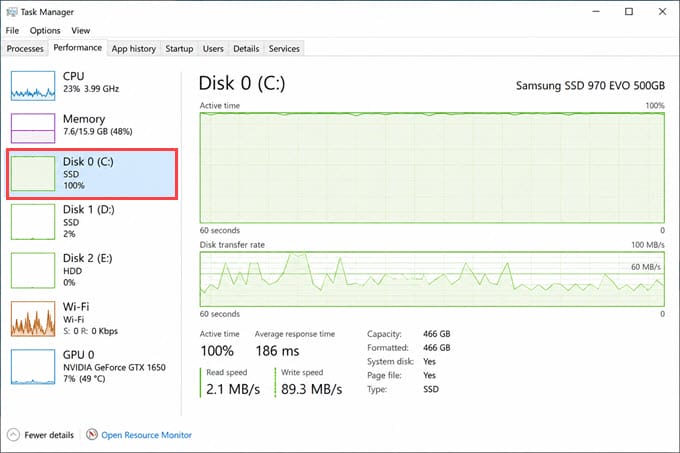
Sort the processes by disk usage and identify the program causing the issue.
You can also monitor SSD activity in detail using:
Task Manager -> Performance -> Disk -> Open Resource Monitor
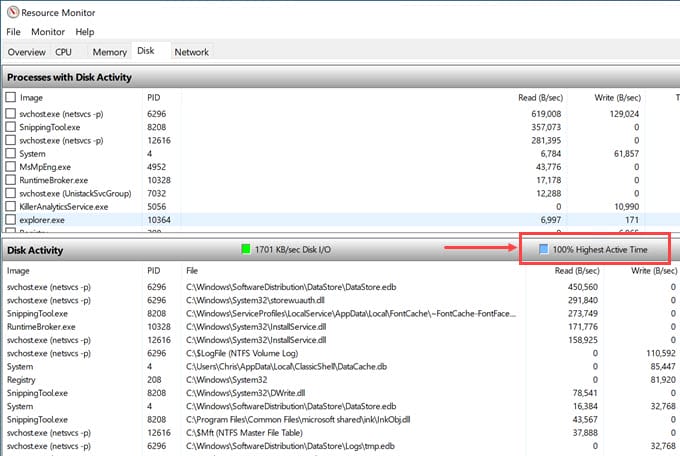
If a particular application or service is causing excessive disk activity, disable or uninstall it. You may reinstall the application with a fresh copy if it was previously corrupted.
Malware or Malicious Program
Malware or hidden malicious programs can run continuously in the background, causing excessive SSD activity. Malware or viruses often perform continuous read/write operations to steal your data or replicate themselves, which can spike SSD usage. Running a full system scan with reliable antivirus software like ESET NOD32 and anti-malware software like Malwarebytes should be your first priority to check whether your system is clean or infected with malware. You can also use a reliable third-party monitoring tool, such as Microsoft’s Process Explorer, to monitor suspicious processes running in the background if the anti-malware software fails to detect them.
Disable Windows Search and Indexing
Windows Search and Indexing constantly scan your files to keep search results fast, and if this service misbehaves or becomes corrupted, it can max out your SSD operations. Disabling Windows Search and Indexing temporarily can help you confirm if this is the cause.

To disable Windows Search, follow:
Press Windows + R
Type:
services.msc
Locate Windows Search
Right-click and choose Stop
Set Startup Type to Disabled
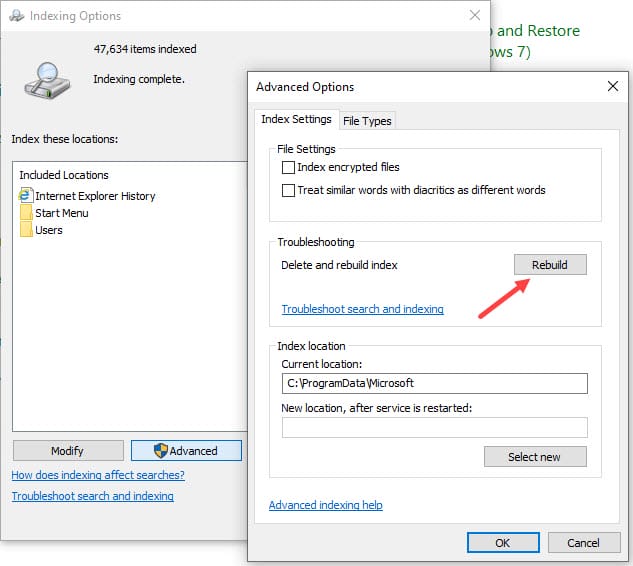
If SSD usage drops significantly, then indexing was the cause. In some cases, rebuilding the Windows search index can fix the issue if it has been corrupted. To rebuild the search index, open the Control Panel, search for and open Indexing Options, and click Advanced. Under the Troubleshooting section, select Rebuild. This deletes the old index and creates a fresh database.
Disable Superfetch (now called SysMain)
Superfetch (SysMain) is a Windows service that helps to preload frequently used programs into memory. However, it can sometimes cause high disk usage. To disable Superfetch, open the Command Prompt and type this into your Command Prompt and hit Enter:
sc stop “SysMain” & sc config “SysMain” start=disabled
Alternatively, you can disable it by opening the Services app, locating the SysMain service, right-clicking and stopping it, and then changing its startup type to Disabled

Corrupt SSD Firmware
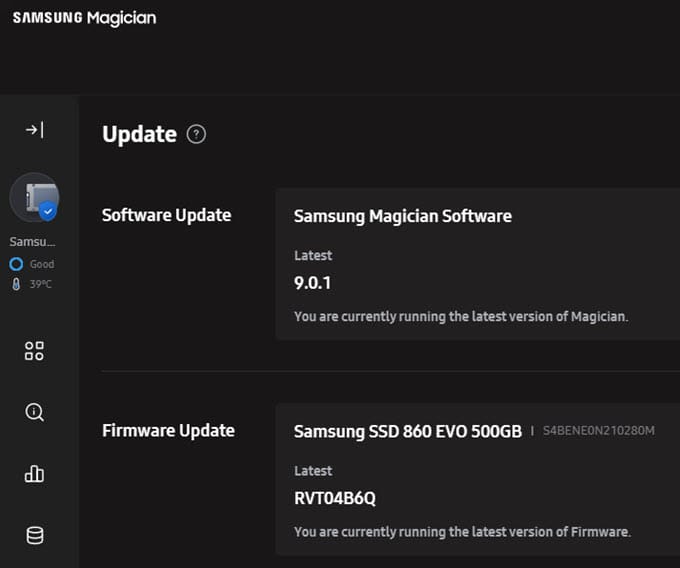
Sometimes, outdated, buggy, or corrupt SSD firmware may cause abnormal disk behavior, including SSD usage spiking to 100%, slowdowns, or write errors. So, it would be better to check and update the firmware on your SSD to see whether the issue is not on the firmware side. SSD firmware can be checked and updated using your SSD’s software, e.g., Samsung Magician, SanDisk Dashboard, Crucial Storage Executive, or Kingston SSD Manager.
Corrupt Windows System files
Corrupted Windows System Files may cause the SSD to show high disk usage, especially when SSD-related files or drivers are compromised or corrupted. To repair the corrupted system files, run the sfc /scannow command in an elevated Command Prompt.
Run the System File Checker utility.
Open Command Prompt as Administrator and run:
sfc /scannow
Wait for the process to complete and restart the system.
If the scannow command is unable to repair the corrupted files, then you have to run the following command to restore the Windows image:
DISM /Online /Cleanup-Image /RestoreHealth
Faulty / Damaged or Dying SSD / SSD Health Low
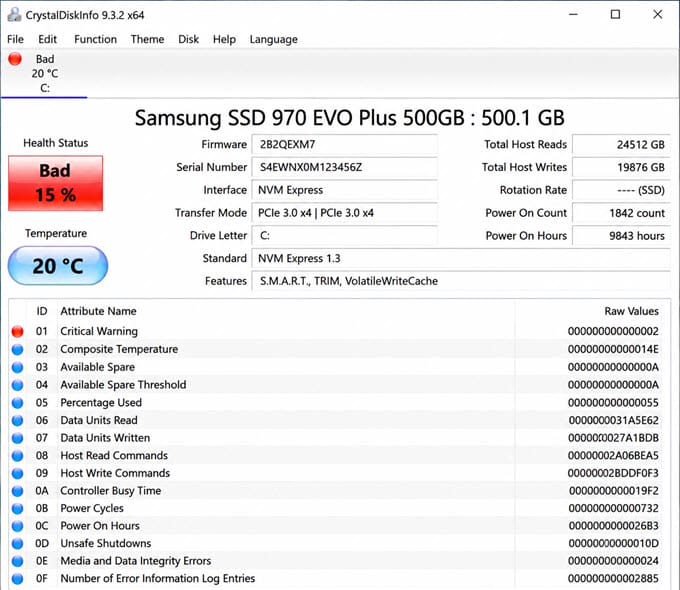
If your SSD’s health has dropped significantly or it has started developing faults, it may show abnormal usage spikes as a symptom of failing hardware. You can check SSD health with a good monitoring tool like CrystalDiskInfo or Hard Disk Sentinel. If SSD health is very low or SMART warnings are present, back up your data immediately and replace the SSD. It is generally recommended to replace the SSD if the health drops to around 20%.
Must Read:
Browser Issue
Some browsers or browser-related processes may continuously write data to the SSD. For example, Chrome or Firefox crash reporter may cause excessive disk activity. Closing the browser completely or disabling unnecessary background reporting processes may help bring SSD usage back to normal.
Installed Program or App Conflict
Certain applications can conflict with Windows, causing SSD usage to spike to very high levels. For example, ASUS GPU Tweak software has been reported to cause abnormal SSD usage on some systems. Uninstalling or updating such conflicting software usually resolves the problem. Also, disable unnecessary startup applications for a faster, more responsive Windows experience.
Windows Updates
Windows updates can heavily utilize the SSD during downloading, extraction, and installation. You can either allow the update process to complete, pause Windows updates temporarily, or permanently disable them using third-party software like StopUpdates10 or Windows Update Blocker, which are reliable and do not cause issues or infect your system with adware or malware.
Program Update in Background
Applications such as Steam, the Epic Games Launcher, Adobe software, and cloud sync utilities can update silently in the background, consuming SSD resources. So, check for background downloads and updates. Also, pause unnecessary updates and monitor disk usage again.
Resource-Hungry Antivirus Software
A resource-hungry antivirus program performing real-time scanning or running heavy processes in the background can keep the SSD, CPU, and RAM continuously busy. Adjusting the scan schedule or switching to a lighter antivirus solution can help reduce SSD load. Also, it would be better to switch to a lighter, more efficient antivirus program like ESET NOD32, which consumes very few resources and has an excellent virus detection rate.
Update SSD Driver
Using an outdated SATA or NVMe driver may cause inefficient communication between your SSD and the operating system, leading to higher-than-normal disk usage. Updating the driver through Device Manager or the motherboard manufacturer’s website is recommended. Also, it is always better to keep your device drivers up to date to avoid any issues with other software or the OS.
Corrupt Windows OS
In some cases, the Windows installation itself can become corrupted over time, leading to erratic SSD behavior including 100% usage. A repair or a clean reinstall of Windows may be required to fully resolve this, as sfc /scannow won’t fix all issues in severely corrupted Windows.
Overheating
An overheating SSD, particularly an NVMe drive running without proper cooling, can throttle itself and behave erratically, which may show up as abnormal usage in Task Manager. Improving airflow inside the PC Case and adding an M.2 heatsink can help keep temperatures in check and restore SSD performance to normal levels.
Partition Corruption
Sometimes, the SSD partition or file system gets corrupted, leading to high or 100% SSD usage even when you are not doing anything or running a light load. In this case, deleting the partitions, recreating them, and formatting the drive can restore the SSD to its normal state.
Note: Back up your data completely before deleting the SSD partition.
Additional Tips and Advice
Here are some additional tips and advice to avoid the 100% SSD usage issue.
Benchmark your SSD Occasionally
Running a benchmark with a tool like CrystalDiskMark will tell you whether your SSD’s actual read/write speeds match its rated specifications. If the numbers are far lower than expected, it indicates a problem with the drive. Other good SSD benchmark tools include AS SSD Benchmark and ATTO Disk Benchmark.
Get an SSD with DRAM Cache
An SSD with a dedicated DRAM cache generally handles read and write requests more efficiently, reducing the likelihood of the drive being stressed under load and showing 100% usage. Budget SSDs without DRAM cache may show higher usage and slower responsiveness during heavy workloads.
NVMe PCIe Gen5 SSDs with DRAM Cache – Samsung 9100 Pro, SanDisk WD Black SN8100, PNY CS3150 XLR8 Gaming Epic-X RGB, Lexar NM1090 Pro, KingSpec OneBoom X500
NVMe PCIe Gen4 SSDs with DRAM Cache – Samsung 990 Pro, WD Black SN850X, Samsung 980 Pro, SK Hynix Platinum P41, Kingston FURY Renegade, Seagate FireCuda 530 / 530R, Crucial T500, Kingston KC3000, Sabrent Rocket 4 Plus, Corsair MP600 Pro, Adata XPG Gammix S70 Blade
NVMe PCIe Gen3 SSDs with DRAM Cache – Samsung 970 EVO Plus, WD Black SN850, Crucial P5 Plus
SATA SSDs with DRAM Cache – Samsung 870 EVO, Crucial MX500
On budget, choose an SSD with SLC Cache
Similarly, an SSD with an SLC cache buffer can absorb sudden bursts of write activity more effectively than one without it, helping keep usage spikes under control during heavy workloads. Premium SSDs with larger SLC cache generally handle workloads more efficiently.
Keep at Least 20% Free Space
An overloaded SSD with very low free space can experience severe slowdowns and constant high usage. It is recommended to keep at least 20% free space on the SSD for optimal performance.
Avoid Cheap Unbranded SSDs
Cheap SSDs without DRAM/SLC cache, poor controllers, or inferior NAND memory may suffer from unstable performance and premature failure. Always buy SSDs from reputable manufacturers such as Samsung, Corsair, Kingston, WD/SanDisk, ADATA, Crucial, and PNY.
Clean NVMe SSD Connector
Dust or oxidation on NVMe connector pins can sometimes lead to instability and SSD detection issues. Remove the SSD carefully, then gently clean the connector with 99% isopropyl alcohol or an electrical contact cleaner such as WD-40 Contact Cleaner.
Final Words
SSD 100% usage issues can occur due to software conflicts, Windows services, driver issues, overheating, or SSD hardware failure. In many cases, the problem can be fixed by identifying the process causing excessive disk activity and properly optimizing the system. However, if the SSD shows signs of failure such as write errors, disappearing drives, low SSD health, or data corruption, then replacing the SSD is the safest option. Always keep regular backups of important data, as SSD failures can occur suddenly and without warning. If you have any queries about SSD 100% usage or SSD-related issues, feel free to ask in the comments below.
(*This post may contain affiliate links, which means I may receive a small commission if you choose to purchase through the links I provide (at no extra cost to you). Thank you for supporting the work I put into this site!)
![Fix ‘PC Won’t Turn ON’ [Top Causes & Solutions]](https://graphicscardhub.com/wp-content/uploads/2021/09/PC-wont-turn-on-211x150.jpg "Fix ‘PC Won’t Turn ON’ [Top Causes & Solutions]")
![Why is My GPU Underperforming? [Top Causes with Solutions]](https://graphicscardhub.com/wp-content/uploads/2023/02/gpu-underperforming-211x150.jpg "Why is My GPU Underperforming? [Top Causes with Solutions]")
![How to Find Right Power Supply for Graphics Card [Detailed Guide]](https://graphicscardhub.com/wp-content/uploads/2018/02/how-to-find-power-supply-for-graphics-card-211x150.jpg "How to Find Right Power Supply for Graphics Card [Detailed Guide]")
