
Solid-state drives (SSDs) have become the preferred storage devices for modern computers because they are significantly faster and more reliable than traditional hard drives. Whether you are upgrading an old laptop, building a gaming PC, or adding extra storage to your workstation, an SSD is often the first hardware upgrade people consider. Unfortunately, the growing popularity and rising prices of SSDs have also led to a rapid rise in counterfeit SSDs sold through online marketplaces and unauthorized sellers.
Unlike fake USB flash drives that are often easy to identify, counterfeit SSDs have become remarkably sophisticated. Some of them use packaging, labels, stickers, serial numbers, and even firmware information that closely resemble genuine products from popular brands such as Samsung, Western Digital, Crucial, Kingston, and SanDisk. Windows also detects the fake drive normally and displays the advertised storage capacity, making it almost impossible for an average user to suspect anything is wrong.
The real problems usually begin after the SSD has been used for some time. You may notice files becoming corrupted, unusually slow write speeds, random freezing, or, in the worst case, complete data loss. By then, the seller’s return window may have already expired, leaving you with a worthless SSD and potentially lost data. Fortunately, there are several reliable ways to determine whether an SSD is genuine or counterfeit. While no single utility can identify every fake SSD, combining a few software tools with some practical tests can expose most counterfeit drives. In this guide, I will explain the different types of fake SSDs, how they work, and the best methods to verify whether your SSD is genuine before trusting it with important data.
What is a Fake SSD?
A fake SSD is any solid-state drive that falsely represents its identity, specifications, or storage capacity. Some counterfeit drives imitate well-known brands by copying everything from the retail packaging to the product labels, while others exaggerate their storage capacity or performance. In either case, the buyer receives a product that is very different from what was advertised.
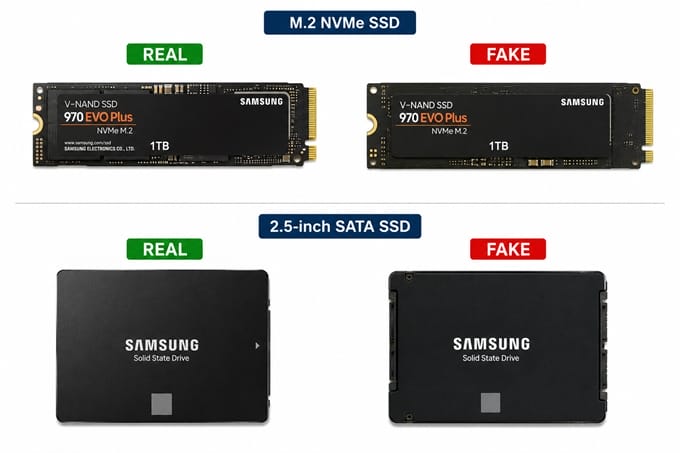
Counterfeit SSDs can generally be divided into two categories. The first consists of cloned products that closely imitate genuine SSDs from reputable manufacturers. These drives are designed to look authentic and often use identical model numbers, stickers, and packaging. The second category includes drives that falsely advertise their capacity. For example, a drive sold as a 2TB SSD may actually contain only 64GB or 128GB of flash memory, with modified firmware tricking the operating system into believing the full capacity is available. Because Windows relies on the information reported by the SSD controller and firmware, it cannot determine whether the reported capacity is genuine. As a result, many counterfeit drives appear perfectly normal until they begin corrupting files once the real storage space has been exhausted.
Why Fake SSDs Have Become More Common?
Over the last few years, SSD prices have risen significantly due to the chip shortage driven by the AI boom. Data centers are in constant need of memory to support scalability due to high processing loads and ongoing expansion. This has created opportunities for scammers to make high-margin profits by selling fake or counterfeit SSDs. Today, fake SSDs can be found on auction websites, online marketplaces, social media advertisements, and even local computer stores. Some sellers deliberately offer them at prices that seem too good to be true, while others price them very close to genuine products to avoid raising suspicion.
Another reason fake SSDs have become more difficult to identify is the improvement in counterfeit manufacturing. Earlier fake drives were often recognized by poor-quality labels or blatantly incorrect specifications. Modern counterfeit SSDs, however, may use convincing packaging, realistic firmware information, and performance that appears normal during short benchmark tests. This is why simply looking at the SSD or checking its capacity in Windows is no longer enough.
Types of Fake SSDs
Not every counterfeit SSD is built the same way. Some are complete replicas of branded products, while others rely on misleading firmware or low-quality hardware to deceive buyers. Understanding the different types of fake SSDs will help you recognize the warning signs much more easily.
Counterfeit Branded SSDs
These are perhaps the most convincing fake SSDs available today. The counterfeit manufacturer copies almost every visible aspect of a genuine SSD, including the retail box, product label, serial number sticker, QR code, and model number. Some even report the same firmware version as the original product, making software identification more difficult.
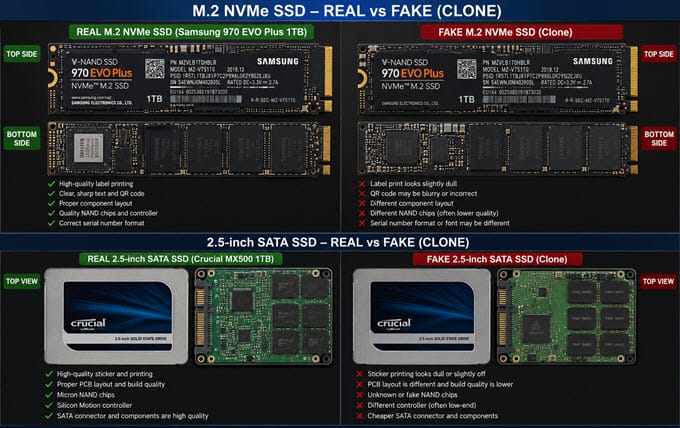
Samsung fake SSDs are by far the most commonly reported counterfeit items, largely because Samsung makes some of the best SSDs on the market and its drives command premium prices, making them the most profitable target for counterfeiters. Drives from Western Digital, Kingston, Crucial, and SanDisk are also frequently copied. The Samsung 870 EVO, 980 Pro, 990 Pro, and most recently the 9100 Pro have all been counterfeited. For most users, these drives appear completely genuine until they begin to exhibit reliability issues or fail verification tests.
Fake Capacity SSDs
Another common scam involves SSDs that falsely advertise a much larger storage capacity than they actually possess. For example, a drive sold as a 2TB SSD may physically contain only 64GB of NAND flash memory. The controller firmware has been modified so that Windows believes the drive has the full advertised capacity. Initially, everything appears to work normally. Files copy successfully, partitions can be created, and the drive reports the expected free space. However, once the real storage capacity is exhausted, the controller begins overwriting previously written data instead of reporting that the drive is full. This results in silent data corruption, which is far more dangerous than receiving an error message. Many users only discover the problem weeks later when they try to open important documents, family photos, or videos that have become unreadable.
Cheap Unbranded SSDs (mostly Chinese)
Not every inexpensive SSD is counterfeit, but some extremely cheap Chinese drives use poor-quality controllers, low-grade NAND flash, and heavily modified firmware to exaggerate their specifications. These drives may advertise impressive read and write speeds but perform far below expectations in real-world workloads.
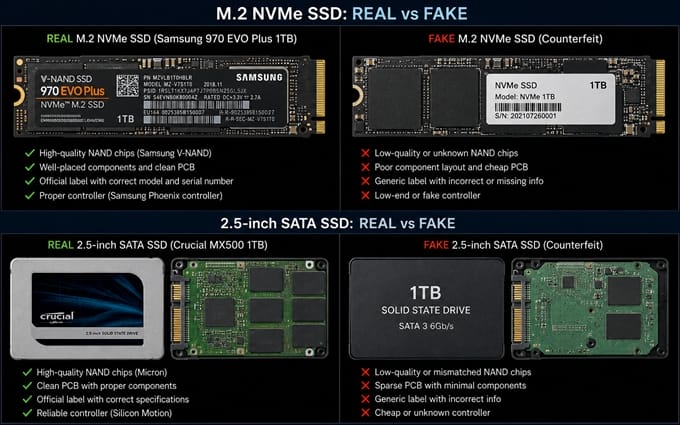
Unlike counterfeit branded SSDs, these drives are usually sold under unfamiliar brand names. Although they may technically function, their long-term reliability is often questionable, making them unsuitable for storing important data.
Refurbished SSDs Sold as New
Some dishonest sellers purchase heavily used SSDs, erase their usage history, replace the labels, and sell them as brand-new products. These drives may not technically be counterfeit, but they are still misleading because the buyer receives an SSD that has already accumulated thousands of hours of use and significant wear. A refurbished SSD sold as new may continue working for months or even years, but its remaining lifespan will be much shorter than that of a genuine new drive.
Why Fake SSDs Are Dangerous
Many people assume the only drawback of a counterfeit SSD is lower performance. In reality, the biggest risk is data loss. A genuine SSD undergoes extensive quality control, firmware validation, and endurance testing before it reaches the market. Counterfeit drives rarely receive such testing and often rely on inexpensive components that fail much sooner than expected.
One of the most dangerous characteristics of fake-capacity SSDs is that they continue accepting new files even after their physical storage has been filled. Instead of informing Windows that the drive is full, the modified controller quietly overwrites older data. Because the operating system believes everything has been written successfully, users often continue to store valuable files without realizing they are gradually overwriting previously saved data.
Counterfeit SSDs are also more likely to develop bad blocks, experience firmware corruption, or disappear from the system unexpectedly. In some cases, the SSD may suddenly become read-only, preventing any new data from being written. Others may no longer be detected, leaving little chance of recovering important files. Even when a fake SSD appears to work correctly, there is no guarantee that its internal components meet the reliability standards expected from reputable manufacturers. For this reason, it is never advisable to use a suspicious SSD as a boot drive or for storing irreplaceable data.
Top Ways to Detect a Fake SSD
There is no single software utility that can accurately identify every counterfeit SSD. Modern fake drives have become increasingly sophisticated and can imitate genuine products by reporting the correct model number, firmware version, and even the advertised storage capacity. Some counterfeit SSDs can also produce benchmark results that appear surprisingly close to those of the original drive, making identification even more challenging. For this reason, you should never rely on a single test. The most reliable approach is to use multiple verification methods. If several tests produce suspicious results, there is a good chance that the SSD is counterfeit or at least not performing according to its advertised specifications. Let’s look at the most effective methods.
Check the SSD Using CrystalDiskInfo
The first utility I recommend installing after purchasing any SSD is CrystalDiskInfo. It is one of the most popular SSD monitoring utilities and provides valuable information about the drive’s firmware, health status, interface, temperature, and SMART attributes. Although CrystalDiskInfo cannot directly tell you whether an SSD is fake, it can often reveal inconsistencies that deserve further investigation. Recent versions of the software can even identify certain counterfeit Samsung NVMe SSDs by detecting mismatched PCI Vendor IDs and suspicious firmware information, making it an excellent first step when verifying a newly purchased SSD.
After opening CrystalDiskInfo, carefully compare the displayed information with the specifications listed on the manufacturer’s official website. Pay particular attention to the model number, firmware version, transfer mode, interface type, and SMART status. Genuine SSDs generally report complete SMART information, whereas some counterfeit drives either omit certain SMART attributes or display unrealistic values. When CrystalDiskInfo identifies a drive as counterfeit, it displays a prominent [FAKE] label directly next to the drive name so you cannot miss it. The detection works by cross-referencing the drive’s reported hardware ID and firmware strings against known authentic Samsung configurations. In a confirmed test with a fake Samsung 990 Pro, the tool flagged the drive immediately because the PCI Vendor ID pointed to a Maxio controller instead of Samsung’s own silicon, and the firmware version returned the telltale bogus string 8888888.
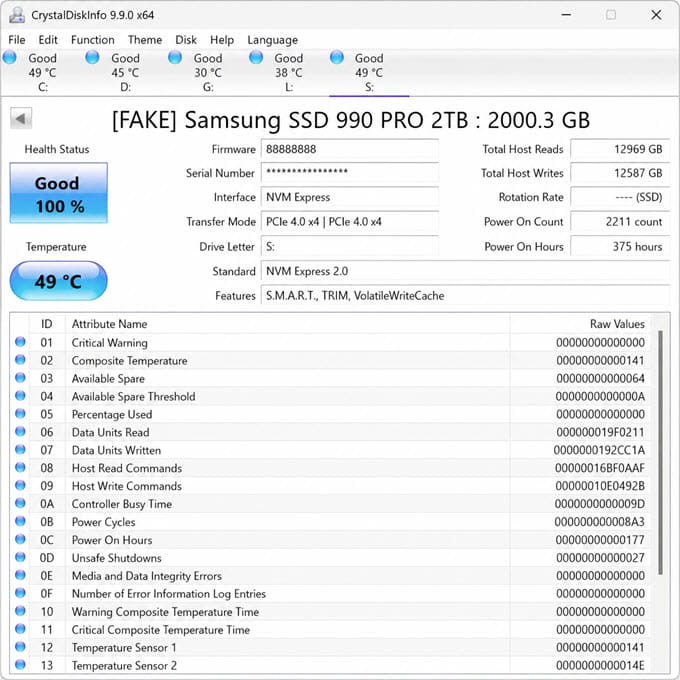
For example, if you purchased a brand-new SSD but CrystalDiskInfo reports thousands of power-on hours or unusually high host writes, the drive may be refurbished rather than new. Similarly, if the firmware version looks different from what the manufacturer provides for that model, you should investigate further. It is important to remember that CrystalDiskInfo alone cannot confirm whether an SSD is genuine. Sophisticated counterfeit drives often manipulate firmware information to appear authentic, which is why additional testing methods are essential.
Note: In some rare cases, Samsung Magician can fail to detect a genuine Samsung SSD. Here, you have to update the Samsung Magician software or contact Samsung support via email or a ticket and share your SSD’s serial number so they can verify in their database whether the SSD is genuine or fake.
Verify the SSD Using the Manufacturer’s Official Utility
One of the simplest yet most overlooked methods for checking an SSD is to use the software provided by its manufacturer. Almost every major SSD brand offers its own management utility that communicates directly with the SSD firmware. For example, Samsung provides Samsung Magician, Western Digital offers SanDisk Dashboard, Kingston has Kingston SSD Manager, and Crucial provides Storage Executive. These utilities allow users to monitor SSD health, update firmware, perform diagnostics, and optimize drive performance.
The advantage of using these programs is that they are designed specifically for the manufacturer’s products. If the SSD is counterfeit, the utility may fail to recognize the drive or report an unsupported device. In some cases, the software may identify firmware inconsistencies that Windows cannot detect. If the Samsung Magician detects a fake SSD, then you can see the label [Counterfeit] or [Non-Samsung] written after the SSD name.
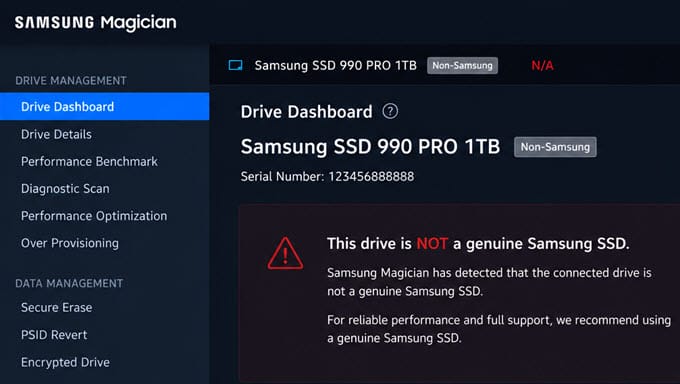
This doesn’t mean every counterfeit SSD will be exposed immediately, but if a drive claiming to be a Samsung SSD cannot be detected by Samsung Magician, it should immediately raise suspicion. For this reason, I always recommend installing the manufacturer’s utility after purchasing a new SSD. It takes only a few minutes and can provide an additional layer of confidence before you begin storing important data.
Verify the Actual Storage Capacity
One of the biggest scams involving counterfeit SSDs is fake storage capacity. These drives may claim to offer 1TB or even 2TB of storage while physically containing only a fraction of that amount. Since Windows simply displays the capacity reported by the controller, it has no way of knowing whether the advertised storage actually exists. This is where you need good third-party tools to check the claimed or actual storage capacity of the drive. Below are two good software programs to determine the actual storage capacity of any storage drive.
H2testw
H2testw is a free utility developed specifically to verify the actual capacity of flash storage devices. Instead of trusting the information reported by the SSD, it fills the drive with test data and then reads everything back to confirm that every sector is physically present and functioning correctly. If the SSD is genuine, H2testw will successfully write and verify data across the entire advertised capacity without producing any errors. However, if the drive contains only a small amount of physical storage, the software will quickly expose the deception.
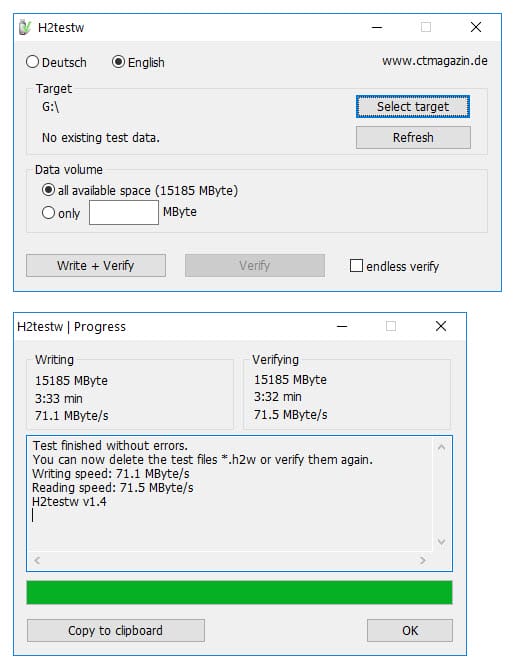
Imagine purchasing what appears to be a 2TB SSD. During normal use, Windows reports the full capacity and allows files to be copied without complaint. When H2testw performs its verification, however, it may discover that only the first 64GB can actually store data correctly. Everything written beyond that point either disappears or overwrites previously stored files. This is one of the strongest indicators of a fake-capacity SSD. The test can take several hours on large drives, but considering the value of the data you may eventually store on the SSD, the waiting time is well worth it.
GRC ValiDrive
Another excellent free utility for verifying flash storage is GRC ValiDrive. Unlike H2testw, which performs a complete write-and-read verification across the entire drive, ValiDrive uses a different approach that allows it to detect fake-capacity drives much more quickly. It uses a smarter approach; rather than writing sequentially, it probes random sectors across the entire claimed capacity to verify that real, accessible storage exists at every point on the drive. It is faster than h2testw for large drives and gives you a visual map of which areas are real and which are fake.
The software was specifically designed to expose storage devices that falsely report their available capacity. It works with SSDs, USB flash drives, memory cards, and portable SSDs, making it a versatile tool for checking almost any type of flash-based storage. Using ValiDrive is straightforward. After launching the program, simply select the SSD and begin the validation process. Within a short time, the utility analyzes the drive and reports whether the advertised capacity appears genuine.
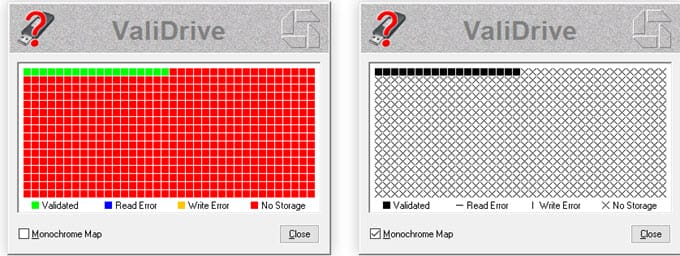
The advantage of ValiDrive is its speed. While H2testw may require several hours to test a multi-terabyte SSD, ValiDrive can often provide useful results much faster. However, I still recommend using both utilities whenever possible. Since they employ different testing methods, running both greatly increases your confidence that the SSD is genuine. If either program reports that the drive’s actual capacity is significantly lower than advertised, you should immediately stop using the SSD and contact the seller for a replacement or refund.
Benchmark the SSD Performance
After confirming that the SSD has the correct storage capacity, the next step is to evaluate its performance. Benchmarking alone cannot determine whether an SSD is genuine, but it can reveal suspicious behavior that often accompanies counterfeit hardware. Many fake SSDs advertise impressive specifications on the packaging. You may see claims of sequential read speeds exceeding 7,000 MB/s or write speeds comparable to premium PCIe Gen4 NVMe SSDs. In reality, the internal hardware may consist of a low-cost controller paired with poor-quality NAND flash that cannot achieve anything close to those numbers.
Benchmarking allows you to compare the SSD’s actual performance against the manufacturer’s official specifications. If the measured speeds are dramatically lower than expected, especially on a brand-new SSD installed in a compatible system, further investigation is required. At the same time, it is important not to rely solely on benchmark scores. Some sophisticated counterfeit SSDs can produce respectable results in short synthetic tests by aggressively using cache memory. Once the cache is exhausted during sustained writes, their performance drops dramatically. This is why benchmarking should always be combined with real-world testing, which we’ll discuss in the next section.
CrystalDiskMark SSD Benchmark
After verifying that the SSD reports the correct storage capacity, the next step is to check whether it actually delivers the performance promised by the manufacturer. One of the easiest ways to do this is by using CrystalDiskMark, a free benchmarking utility that measures sequential and random read/write speeds. Many users mistakenly assume that if an SSD is correctly detected by Windows, it must be genuine. Unfortunately, that isn’t always true. Some counterfeit SSDs are programmed to report the correct model number and storage capacity, but their internal hardware simply cannot deliver the advertised performance. Running a benchmark helps identify such inconsistencies before you begin using the drive for important data.
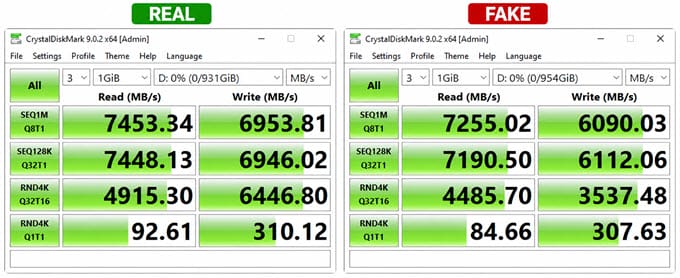
CrystalDiskMark performs several read and write tests using different data sizes and access patterns. The results can then be compared with the official specifications listed by the SSD manufacturer. Don’t panic if your benchmark numbers are slightly lower than the advertised speeds. Manufacturers usually test SSDs under ideal conditions using high-end systems with fresh operating system installations and empty drives. In real-world computers, it is perfectly normal for performance to vary by around five to ten percent depending on the motherboard, processor, available free space, and background applications.
However, if a PCIe Gen4 NVMe SSD advertised to deliver read speeds of around 7,000 MB/s only manages 2,000 MB/s on a compatible system, something is clearly wrong. The problem could be caused by an incorrect PCIe slot, outdated drivers, thermal throttling, or in some cases, counterfeit hardware. This is why benchmark results should always be interpreted alongside other tests rather than in isolation.
AS SSD Benchmark
Another utility worth trying is AS SSD Benchmark. While CrystalDiskMark is excellent for measuring peak performance, AS SSD uses incompressible data during testing, making its results closer to real-world workloads. One advantage of AS SSD Benchmark is that it also reports access times and provides an overall performance score, allowing you to compare your SSD with reviews of the same model available online. If your results are significantly lower than those achieved by genuine drives, it may indicate poor-quality NAND flash, an inferior controller, or firmware issues. AS SSD also includes a file copy benchmark that simulates common tasks such as copying ISO images, games, and software applications. These tests often expose weaknesses that are not immediately visible in simple sequential benchmarks.
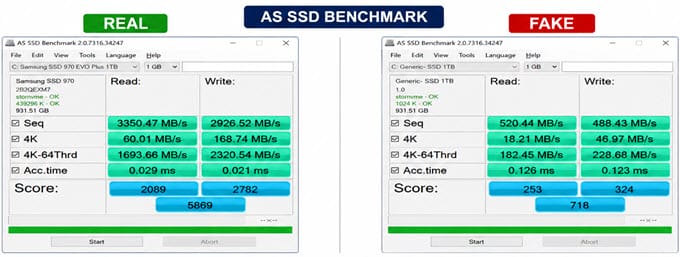
Again, lower benchmark scores alone do not prove that an SSD is fake. Budget SSDs and DRAM-less models naturally perform below premium SSDs. The goal here is to determine whether the results are reasonably consistent with the specifications of the model you purchased.
ATTO Disk Benchmark
CrystalDiskMark and AS SSD Benchmark provide an excellent overview of SSD performance, but they do not always show how the drive behaves under different transfer sizes. ATTO Disk Benchmark fills this gap by measuring performance across a wide range of block sizes. This is particularly useful because some counterfeit SSDs are optimized to perform well only during short bursts of sequential data transfers. Once the workload changes or the cache becomes full, write speeds may collapse dramatically.
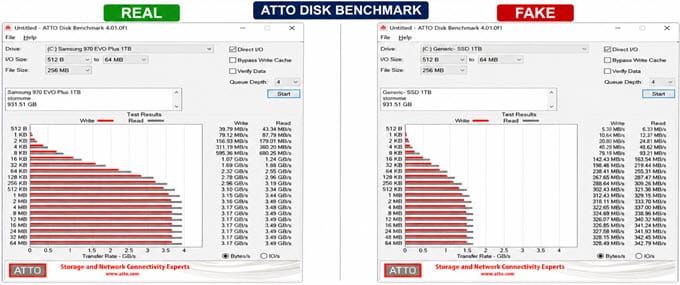
Running ATTO allows you to see how performance scales as the transfer size increases. A genuine SSD typically shows a smooth increase in throughput before stabilizing near its rated speeds. Counterfeit or poorly designed drives often produce erratic graphs with large fluctuations between different transfer sizes. Although most users will be satisfied with CrystalDiskMark, ATTO offers another useful benchmark if you suspect the SSD is not performing as expected.
Perform a Large File Transfer Test
Synthetic benchmarks are useful, but they don’t always reflect how an SSD behaves during everyday use. This is why I always recommend performing a real-world file transfer test after installing a new SSD. The easiest way to do this is by copying a large amount of data—preferably between 100GB and 200GB—in a single operation. You can use game files, Blu-ray images, virtual machine files, or high-resolution videos. The objective is to keep the SSD writing continuously for an extended period, rather than only a few seconds.
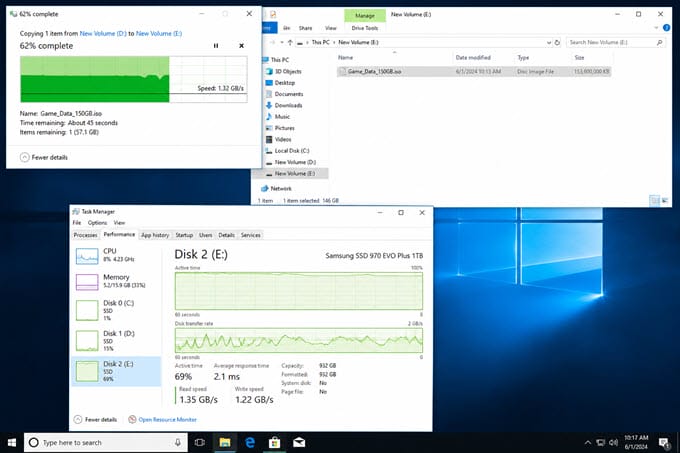
During the transfer, observe the write speed using Windows Task Manager or Resource Monitor. A genuine SSD may slow down once its SLC cache becomes full, but the reduction is usually gradual and remains within a reasonable range. Most importantly, the transfer should complete successfully without generating any errors. Counterfeit SSDs often behave quite differently. They may begin the transfer at impressive speeds but suddenly drop to extremely low write speeds after only a few gigabytes. In more severe cases, Windows may pause the transfer altogether, display copy errors, or become temporarily unresponsive. After the copy operation finishes, don’t assume everything worked correctly. Open several files from different folders, play a few videos, and verify that documents can still be read normally. If recently copied files are already corrupted or missing, the SSD should not be trusted.
Fill the SSD Close to Its Full Capacity
One of the most effective ways to expose a fake-capacity SSD is simply to fill it with data. This may sound obvious, but many users never come close to using the advertised capacity of a new SSD. As a result, a counterfeit drive can continue operating for weeks or even months before the problem becomes apparent. Suppose you purchased a drive advertised as having a capacity of 2TB. If the drive actually contains only 64GB of NAND flash memory, everything will appear normal until that physical limit has been reached. Beyond that point, the controller begins overwriting existing data instead of reporting that the drive is full.
To avoid unpleasant surprises, copy enough data to fill most of the SSD, then verify that older files remain intact. If previously copied files suddenly become unreadable after the drive reaches a certain capacity, it almost certainly indicates that the reported storage size is fake. Utilities such as H2testw perform this verification automatically, but conducting a manual file copy test provides additional confidence because it more closely resembles real-world usage.
Inspect the SMART Information Carefully
Every modern SSD records operating statistics through SMART (Self-Monitoring, Analysis and Reporting Technology). These attributes provide valuable insight into the condition and history of the drive. Utilities such as CrystalDiskInfo and Hard Disk Sentinel display information including total host writes, power-on hours, temperature history, remaining life, and media errors. When checking a newly purchased SSD, look for anything that appears unusual. A supposedly brand-new drive should not have thousands of power-on hours or hundreds of terabytes of host writes. Such values often indicate that the SSD has been previously used and repackaged for resale.
Likewise, missing SMART attributes or obviously incorrect values may suggest manipulated firmware. Although sophisticated counterfeit SSDs can spoof some SMART information, inconsistencies are still surprisingly common. SMART information should never be treated as definitive proof, but when combined with capacity verification and benchmark testing, it becomes another useful piece of evidence.
Why Benchmarking Alone Isn’t Enough
Some counterfeit SSDs are specifically designed to perform well during short synthetic tests. They make aggressive use of cache memory, allowing them to produce respectable benchmark scores despite containing poor-quality hardware. The real problems usually appear only under sustained workloads, such as copying hundreds of gigabytes of data or filling the drive to near its advertised capacity. This is why experienced users rarely rely on a single benchmark when evaluating a new SSD. Instead, think of benchmarking as just one part of the verification process. When benchmark results are combined with CrystalDiskInfo, H2testw, ValiDrive, manufacturer utilities, and real-world file transfers, it becomes much more difficult for a counterfeit SSD to hide its true nature.
Physically Inspect the SSD
If the software tests leave you with doubts about the authenticity of your SSD, the next step is a physical inspection. This isn’t something I recommend for every user, as opening the SSD may void its warranty, but it can provide definitive evidence when all other tests point to a counterfeit drive. Many fake SSDs look almost identical to genuine products from the outside. The enclosure, labels, and even the screws are often copied with surprising accuracy. The biggest differences are usually found inside, where counterfeit manufacturers cut costs by using inexpensive controllers, recycled NAND flash, or even completely different storage devices.
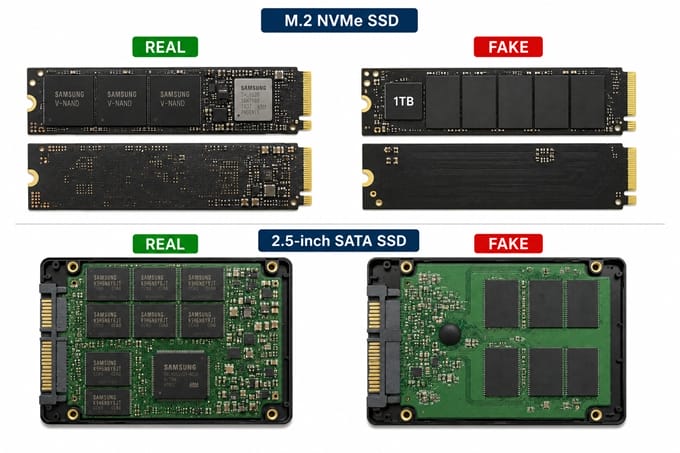
For a SATA SSD, removing the enclosure is usually straightforward. Once opened, inspect the printed circuit board carefully. A genuine SSD typically has a clean PCB layout with branded NAND flash chips and a recognizable controller from companies such as Phison, Silicon Motion, Innogrit, or Samsung. Counterfeit drives often use generic controllers, poorly soldered components, or far fewer NAND chips than expected.
If you are inspecting an M.2 NVMe SSD, proceed with caution. Many manufacturers place the warranty label directly over the components, and removing it may void your warranty. The sticker itself can also be a clue, as counterfeit stickers often have a slightly off-color appearance, incorrect font weights, or printing that is not as sharp as that of the real SSD. Unless you are confident the drive is fake and have exhausted other testing methods, it is usually better to rely on software verification instead.
Beware of SSDs That Contain a MicroSD Card
One of the most unusual counterfeit SSD scams involves drives that contain nothing more than a microSD card connected to a small adapter board. Externally, these drives resemble ordinary SATA SSDs, but internally they function more like oversized USB flash drives. Videos showing such counterfeit drives have become increasingly common on hardware forums and YouTube. While this type of scam is less sophisticated than modified-firmware SSDs, it demonstrates just how far counterfeit manufacturers are willing to go to reduce production costs. A microSD card simply cannot deliver the sustained performance, endurance, or reliability expected from a genuine SSD. Even if the drive appears to work initially, it is highly likely to suffer from severe slowdowns and premature failure.
Linux Users Can Verify SSDs Using F3
Windows users often rely on H2testw or ValiDrive, but Linux users have an equally powerful alternative called F3 (Fight Flash Fraud). F3 performs essentially the same task as H2testw by writing data across the entire drive and then reading it back to verify that every advertised sector actually exists. Because the software tests the physical storage rather than trusting the controller, it is highly effective at exposing fake-capacity SSDs.
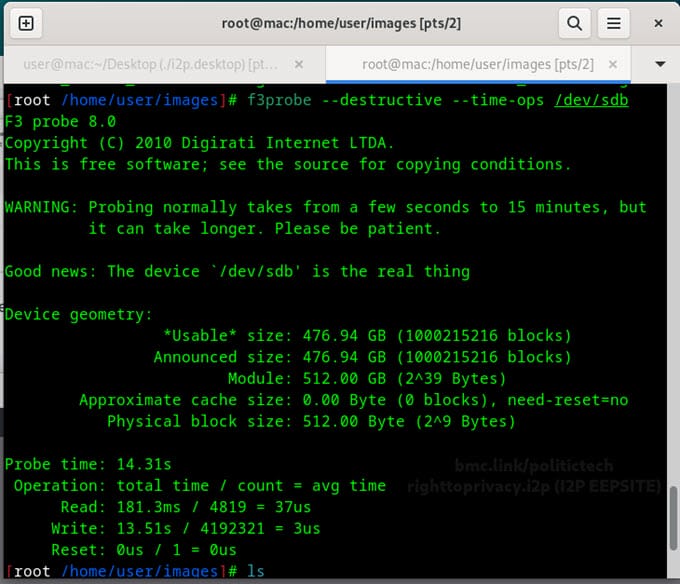
For users running Linux, F3 is one of the best tools available for verifying SSDs, USB flash drives, and memory cards. The process takes some time on large drives, but it provides peace of mind before you begin storing valuable data.
What Should You Do If You Bought a Fake SSD?
Discovering that you’ve purchased a counterfeit SSD can be frustrating, but the first priority should always be protecting your data. If the drive still works, copy any important files to another storage device immediately. Even if the SSD appears stable, there is no guarantee that it will continue functioning, and delaying the backup only increases the risk of permanent data loss.
Once your files are safe, gather as much evidence as possible. Take photographs of the SSD, its packaging, the product label, and any benchmark or verification results produced by CrystalDiskInfo, H2testw, or ValiDrive. These screenshots can be extremely helpful when requesting a refund or reporting the seller.
Next, contact the retailer or marketplace where you purchased the SSD. Reputable sellers will usually replace the product or issue a refund if you provide convincing evidence that the drive is counterfeit. If the seller refuses to cooperate, contact the SSD manufacturer directly and explain your issue. You may also ask the manufacturer to take action against the seller if the seller is not willing to replace the drive or issue a refund.
If all else fails, consider reporting the seller to the marketplace and requesting a chargeback through your payment provider if you paid by credit card or another protected payment method.
Check out:
- Best PCIe Gen4 SSDs for Gaming and Work
- Best PCIe Gen5 SSDs for Gaming and Work
- Best PCIe Gen3 SSDs for Gaming and Work
How to Avoid Buying a Fake SSD
Below are some tips to help you avoid buying a fake or counterfeit SSD.
Always buy from an authorized retailer – Samsung, WD, Kingston, Seagate, and every other major SSD brand maintains a list of authorized sellers on their websites. Stick to those. Major national electronics retailers, the manufacturer’s own online store, and well-established local computer hardware shops are all safe bets.
Be skeptical of prices that are too good to be true – If a 2TB Samsung 990 Pro is selling for half of what every other authorized seller is charging, there is almost certainly a reason for that. The SSD market does not have margins wide enough to support legitimate discounts of that magnitude from sellers who are not clearing old stock.
Avoid third-party marketplace listings on Amazon, eBay, and AliExpress – Even on Amazon, a listing that appears to be “sold by Amazon” can ship from third-party warehouse sellers. Always check the actual seller name and look for “Sold by Amazon” and “Fulfilled by Amazon” listings from verified partners. AliExpress and similar platforms are extremely high risk for counterfeit SSDs and should be avoided entirely for storage purchases.
Run CrystalDiskInfo and the manufacturer’s utility as soon as the drive arrives, before your return window closes. If the drive fails any check, you still have time to return it for a full refund. Keep the invoice, packaging, and warranty documents until you are confident that the SSD is genuine. These items can make the refund process much easier if any problems arise.
Check out: SSD Upgrade Guide for PC and Laptops
Genuine SSD vs Fake SSD
The differences between a genuine SSD and a counterfeit one are not always obvious at first glance. In fact, some fake drives look almost identical to the originals. The table below summarizes some of the most common differences.
| Genuine SSD | Fake SSD | |
| Storage Capacity | Matches advertised specification | May report more capacity than physically available |
| Firmware | Official manufacturer firmware | Modified or generic firmware |
| NAND Flash | High-quality branded NAND | Low-quality, recycled, or unknown NAND |
| Manufacturer Utility | Fully supported | May not detect the drive |
| SMART Information | Complete and accurate | Missing or inconsistent values |
| Sustained Performance | Stable during long transfers | Often drops sharply after cache is exhausted |
| Reliability | High | Unpredictable |
| Warranty | Valid manufacturer warranty | Often invalid or nonexistent |
*Although no single characteristic proves that an SSD is fake, several warning signs appearing together should encourage you to investigate further.
See also:
Final Words
Counterfeit SSDs have become far more sophisticated than they were a few years ago. Many of them imitate genuine products so closely that even experienced PC users may struggle to identify them based on appearance alone. Fortunately, software tools and practical testing methods make it much harder for these drives to hide their true nature.
If you’ve recently purchased a new SSD, don’t rely solely on what Windows reports. Take a few extra minutes to inspect the drive with CrystalDiskInfo, verify its capacity using H2testw or GRC ValiDrive, and compare its performance with the manufacturer’s specifications. These simple checks can save you from data corruption, wasted money, and the frustration of discovering a counterfeit SSD long after the return period has expired.
Most importantly, always purchase SSDs from reputable retailers and avoid deals that appear too good to be true. A genuine SSD is an investment in the safety of your data, and verifying it before use is a small effort that can prevent much larger problems in the future. If you have any questions about identifying a fake SSD or need help verifying a newly purchased drive, feel free to ask in the comments section below.
(*This post may contain affiliate links, which means I may receive a small commission if you choose to purchase through the links I provide (at no extra cost to you). Thank you for supporting the work I put into this site!)
![GPU High Idle Temperature [Causes and Solutions]](https://graphicscardhub.com/wp-content/uploads/2025/05/gpu-high-idle-temperature-211x150.jpg "GPU High Idle Temperature [Causes and Solutions]")
![PSU Fan Not Spinning? Find out Why & How to Fix it [Solved]](https://graphicscardhub.com/wp-content/uploads/2019/04/psu-fan-not-spinning-fix-211x150.jpg "PSU Fan Not Spinning? Find out Why & How to Fix it [Solved]")
![Fix CPU High Idle Temperature [45 to 50 Degree Celsius or Higher]](https://graphicscardhub.com/wp-content/uploads/2024/09/cpu-high-idle-temperature-211x150.jpg "Fix CPU High Idle Temperature [45 to 50 Degree Celsius or Higher]")
