
“How to check motherboard and graphics card compatibility?” is one of the most common questions in the PC gaming community. Novice users, or those new to PC building, often ask because most experienced users already know the answer.
Generally, most modern graphics cards are compatible with modern motherboards, and you normally do not have to worry much about compatibility when using relatively recent hardware. However, compatibility issues can arise when one component is significantly older than the other. In those cases, even experienced users may struggle to identify the cause of the incompatibility.
You need to check a couple of things to determine whether a graphics card is compatible with a motherboard. The PCIe slot and PCIe generation are the most obvious factors, but BIOS or firmware compatibility also matters, especially when using an older graphics card with a modern motherboard. Here are the key factors to check for motherboard and graphics card compatibility.
Motherboard GPU Compatibility Factors
Below are the main things to check when you want to check graphics card compatibility with the motherboard or motherboard compatibility with a graphics card.
Graphics Card Slot
First, your motherboard must have a suitable graphics card slot for the card you plan to install. In the distant past, there was no standard graphics card slot requirement because older graphics cards used a conventional PCI connector. Then came the Accelerated Graphics Port (AGP), a dedicated graphics card interface that offered much higher bandwidth than the older PCI interface.
During the AGP era, your motherboard needed an AGP slot to install an AGP graphics card. After AGP came the PCI Express (Peripheral Component Interconnect Express), or PCIe, standard, which offered much higher bandwidth and eventually replaced AGP as the standard interface for graphics cards.
Nowadays, almost all modern graphics cards use a PCIe x16 connector, and almost all modern desktop motherboards include a PCIe x16 slot for installing a graphics card. Therefore, if you have a modern PCIe graphics card and a modern motherboard with a PCIe x16 slot, the physical interface is generally not an issue.
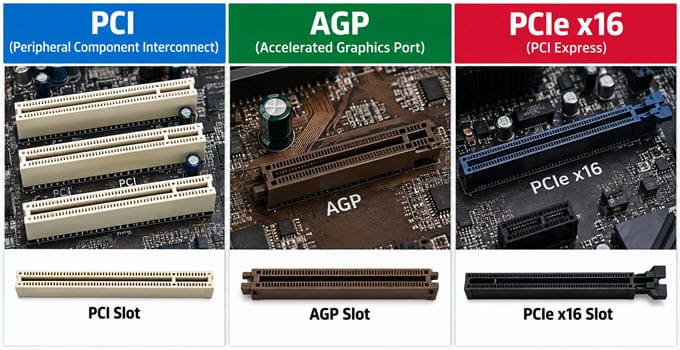
It is important to note that a full-length PCIe slot does not always mean that it is electrically connected as x16. Some motherboards have multiple full-length PCIe slots, but the secondary slot may operate at x8, x4, or another configuration. For a typical single-graphics-card setup, you should install the graphics card in the primary PCIe x16 slot.
PCIe Generations, Specifications, or Versions
PCI Express (PCIe) has undergone many revisions, starting from PCIe 1.0 (PCIe Gen1), followed by PCIe 2.0 (PCIe Gen2), PCIe 3.0 (PCIe Gen3), PCIe 4.0 (PCIe Gen4), PCIe 5.0 (PCIe Gen5), PCIe 6.0 (PCIe Gen6), and newer generations. With each newer PCIe specification or version, the transfer rate and available bandwidth increase considerably over the previous generation. The following table shows the approximate full-duplex bandwidth for the different PCIe generations:
| Specification | Transfer Rate | PCIe x1 | PCIe x2 | PCIe x4 | PCIe x8 | PCIe x16 |
| PCIe 1.0 | 2.5 GT/s | 500 MB/s | 1 GB/s | 2 GB/s | 4 GB/s | 8 GB/s |
| PCIe 2.0 | 5.0 GT/s | 1 GB/s | 2 GB/s | 4 GB/s | 8 GB/s | 16 GB/s |
| PCIe 3.0 | 8.0 GT/s | 2 GB/s | 4 GB/s | 8 GB/s | 16 GB/s | 32 GB/s |
| PCIe 4.0 | 16 GT/s | 4 GB/s | 8 GB/s | 16 GB/s | 32 GB/s | 64 GB/s |
| PCIe 5.0 | 32 GT/s | 8 GB/s | 16 GB/s | 32 GB/s | 64 GB/s | 128 GB/s |
| PCIe 6.0 | 64 GT/s | 16 GB/s | 32 GB/s | 64 GB/s | 128 GB/s | 256 GB/s |
The important thing to understand is that the PCIe generation of the graphics card and motherboard doesn’t necessarily have to match.
PCI Express generations are backward and forward compatible with different generations. For example, if you have a graphics card that supports PCIe 3.0 and a motherboard that supports PCIe 4.0, the PCIe 3.0 graphics card should work on the PCIe 4.0 motherboard, but the connection will operate at PCIe 3.0 bandwidth.
Similarly, if you have a PCIe 4.0 graphics card and a PCIe 3.0 motherboard, the PCIe 4.0 graphics card should work on the PCIe 3.0 motherboard, but the connection will operate at PCIe 3.0 bandwidth.
In simple terms, the graphics card and motherboard don’t have to support the same PCIe generation. The connection normally runs at the lower of the two PCIe generations. For example, a PCIe 4.0 graphics card in a PCIe 3.0 motherboard runs at PCIe 3.0 speeds, and a PCIe 3.0 graphics card in a PCIe 4.0 motherboard also runs at PCIe 3.0 speeds. So, a PCIe generation mismatch generally does not make a graphics card incompatible with a motherboard.
BIOS Compatibility [UEFI/Legacy]
One major factor affecting motherboard GPU compatibility is the BIOS or firmware. Both graphics cards and motherboards come with their own firmware for hardware initialization and configuration. For graphics cards, this firmware is generally called VBIOS, while the motherboard firmware is commonly referred to as BIOS or UEFI firmware.
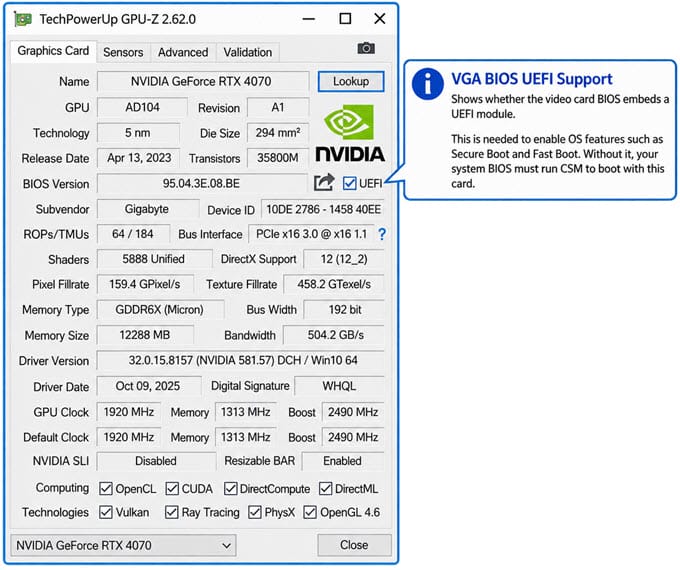
Generally, most modern motherboards and graphics cards are compatible and work together without issues. Compatibility problems mainly arise when one piece of hardware is much older than the other. For example, you may encounter compatibility problems when pairing an older graphics card with a modern motherboard, or when installing a modern graphics card in a much older motherboard.
Older graphics cards and motherboards generally use Legacy BIOS, whereas modern motherboards and graphics cards use UEFI firmware. During the transition from Legacy BIOS to UEFI, many modern UEFI motherboards included support for older hardware through the Compatibility Support Module (CSM).
What Is CSM?
Compatibility Support Module, commonly known as CSM, is a UEFI firmware component that provides compatibility with older Legacy BIOS systems. It lets a modern UEFI motherboard support older hardware and software designed for traditional or legacy BIOS. CSM can also let systems boot from older MBR-partitioned drives and can be useful with older graphics cards that aren’t fully compatible with native UEFI mode.
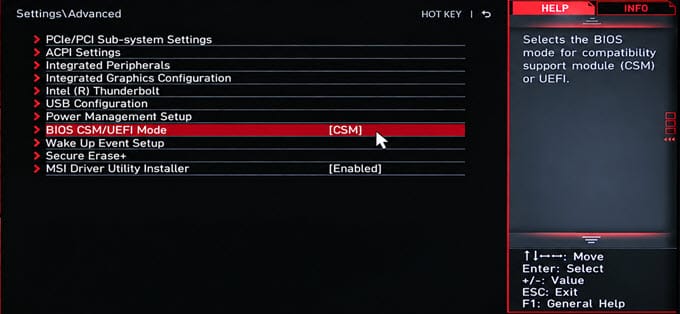
However, not every modern motherboard supports CSM. Many newer motherboards have moved toward UEFI-only operation and may no longer provide an option to enable CSM. This matters when you try to install a very old graphics card in a modern motherboard.
Most graphics cards with UEFI firmware also include Legacy BIOS support because they use what is commonly called a Hybrid VBIOS. This dual-firmware support lets the graphics card initialize and display an image on older motherboards that use Legacy BIOS, while remaining compatible with newer UEFI-based systems.
Older Graphics Cards and UEFI + Secure Boot Compatibility
Older graphics cards can also create compatibility issues with modern motherboards that use UEFI firmware. These problems occur mainly when Secure Boot is enabled. A major compatibility issue with older graphics cards is the lack of a GOP (Graphics Output Protocol) driver in the card’s firmware.
Older graphics cards typically use a traditional VBIOS, while newer graphics cards include UEFI-compatible GOP firmware. A GOP (Graphics Output Protocol) driver is a UEFI-compatible graphics firmware component embedded in the graphics card’s VBIOS. It initializes the GPU and display during Boot, allowing the system to output video before the operating system and its graphics drivers load.
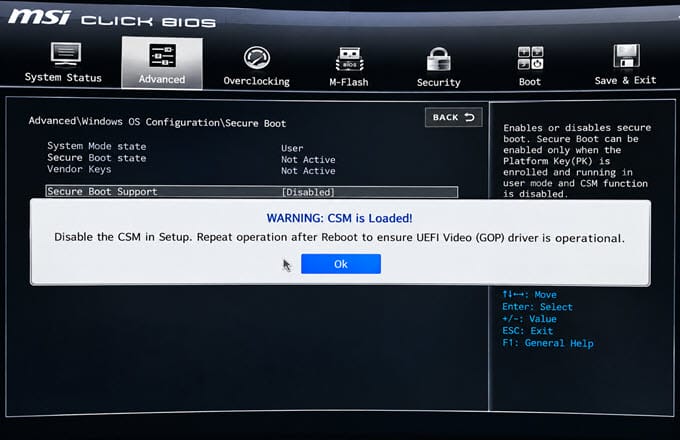
When UEFI mode and Secure Boot are enabled, the graphics card’s firmware must also meet the required UEFI and Secure Boot compatibility requirements. Without GOP, you will get display problems when you install an older graphics card without GOP support in a modern motherboard.
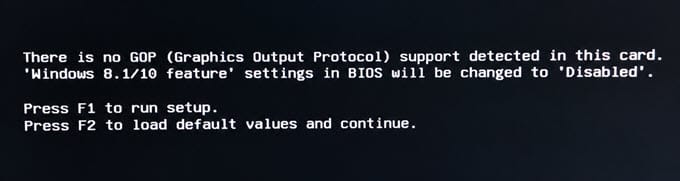
Common symptoms include a blank screen when entering the BIOS/UEFI setup, a black screen during startup, or no display output until Windows loads. In some cases, the system may fail to provide any video output. This is why an older graphics card can sometimes appear incompatible with a modern motherboard, even though the card physically fits into the PCIe slot.
Can You Update the GPU VBIOS?
If the graphics card manufacturer released a newer VBIOS containing GOP support, updating the graphics card’s firmware may resolve the compatibility problem. However, not every older graphics card has a GOP-compatible firmware update available.
Be careful when updating the graphics card VBIOS because the firmware must match the exact graphics card model and board revision. Flashing an incorrect VBIOS can potentially cause additional problems or prevent the graphics card from working.
If no compatible firmware exists, using CSM/Legacy mode, when supported by the motherboard, may be an alternative. However, this can conflict with modern operating systems and configurations that require UEFI and Secure Boot to be enabled.
Motherboard and GPU BIOS Compatibility
The following table provides a simple overview of the different graphics card and motherboard firmware combinations:
| GPU BIOS (VBIOS) / Firmware | Motherboard BIOS / Firmware | Compatibility |
| Legacy | Legacy | Compatible |
| Legacy | UEFI | Compatible in CSM Mode |
| UEFI | UEFI | Compatible |
| UEFI | Legacy | Not Compatible |
| UEFI + Legacy (Hybrid BIOS) | Legacy | Compatible |
| UEFI + Legacy (Hybrid BIOS) | UEFI | Compatible |
| UEFI (without GOP) | UEFI + Secure Boot | Not Compatible |
| UEFI (with GOP) | UEFI + Secure Boot | Compatible |
The table is a simplified representation of firmware compatibility. Actual behavior can depend on the specific graphics card, motherboard firmware, firmware settings, and operating system configuration.
What Is the Most Important Thing to Check?
For a modern graphics card and modern motherboard, first check whether the motherboard has a suitable PCIe x16 slot. In most cases, it already will.
Next, check the PCIe generation supported by both components. As explained above, the generations don’t need to match because PCIe is backward- and forward-compatible.
If you are using significantly older hardware, BIOS compatibility becomes more important. For an older graphics card, check whether it supports UEFI and has a GOP driver in its firmware. If the motherboard is UEFI-only and the graphics card lacks the required UEFI/GOP support, you may see a blank screen or other display problems during startup.
If the motherboard supports CSM, enabling it may allow the older graphics card to initialize using its Legacy BIOS support. For a modern graphics card, you generally don’t need to worry about this because modern GPUs are designed to work with modern UEFI-based motherboards.
Frequently Asked Questions (FAQs)
Does every graphics card work with every motherboard?
No. Most modern graphics cards and motherboards are compatible because they use the PCIe interface, but compatibility can become an issue when combining significantly older and newer hardware. BIOS/UEFI, CSM, GOP, and Secure Boot can also affect compatibility.
Does the PCIe version need to match between the motherboard and graphics card?
No. PCIe is backward and forward compatible. For example, a PCIe 4.0 graphics card can work with a PCIe 3.0 motherboard, although the connection will operate at the lower PCIe 3.0 specification.
Can I use a PCIe 3.0 graphics card on a PCIe 4.0 motherboard?
Yes. A PCIe 3.0 graphics card can normally operate in a PCIe 4.0 x16 slot. The connection will run at PCIe 3.0 speeds.
Can an old graphics card work with a new motherboard?
It can, but BIOS/UEFI compatibility may become an issue. Older graphics cards may lack UEFI-compatible GOP firmware and may require CSM or Legacy compatibility if the motherboard supports it.
What is GOP on a graphics card?
GOP, or Graphics Output Protocol, is a UEFI-compatible graphics firmware component that lets the GPU initialize the display during Boot, before the operating system and graphics drivers load.
Can Secure Boot cause an old graphics card to stop working?
Yes. An older graphics card without appropriate UEFI/GOP support can encounter display or boot problems when native UEFI mode and Secure Boot are enabled.
What is CSM on a motherboard?
CSM, or Compatibility Support Module, is a UEFI firmware component that provides compatibility with older Legacy BIOS-based hardware and software. It can sometimes allow older graphics cards to work with newer motherboards.
How do I know if my graphics card is compatible with my motherboard?
Check that the motherboard has a suitable PCIe x16 slot, then verify the PCIe generations, motherboard BIOS/UEFI configuration, and graphics card VBIOS/UEFI support. For older GPUs, check specifically for GOP support.
See also:
Final Words
Generally, checking motherboard and graphics card compatibility is simple, especially with relatively modern hardware. The compatibility problems mainly arise when one component is significantly older than the other. So, when checking motherboard GPU compatibility, don’t look only at the PCIe slot. For modern hardware, the PCIe interface is generally not a problem. If you are mixing older and newer hardware, also check BIOS/UEFI compatibility, CSM support, and whether the graphics card has UEFI-compatible GOP firmware. If you have any questions about motherboard compatibility with a graphics card, or a graphics card’s compatibility with a motherboard, please let me know in the comments below.
(*This post may contain affiliate links, which means I may receive a small commission if you choose to purchase through the links I provide (at no extra cost to you). Thank you for supporting the work I put into this site!)
![PC Stuck on Motherboard Screen [Causes & Solutions]](https://graphicscardhub.com/wp-content/uploads/2023/04/pc-stuck-motherboard-screen-logo-211x150.jpg "PC Stuck on Motherboard Screen [Causes & Solutions]")
![Cache Hierarchy Error Event ID 18 [Fixes and Causes]](https://graphicscardhub.com/wp-content/uploads/2025/10/Cache-Hierarchy-Error-Event-ID-18-211x150.jpg "Cache Hierarchy Error Event ID 18 [Fixes and Causes]")
![How to get a Graphics Gard during GPU Shortage? [Top Tips & Ways]](https://graphicscardhub.com/wp-content/uploads/2022/01/gpu-shortage-211x150.jpg "How to get a Graphics Gard during GPU Shortage? [Top Tips & Ways]")
